Building an AI Knowledge Base with Momen

1. Data Modeling
The database is the foundation of the application. Momen manages the backend infrastructure automatically based on the schema defined in the visual editor.
Creating the Schema
Navigate to the Data page, under Data model tab, you'll see the default schema. The AI Knowledge Base template includes these primary tables:
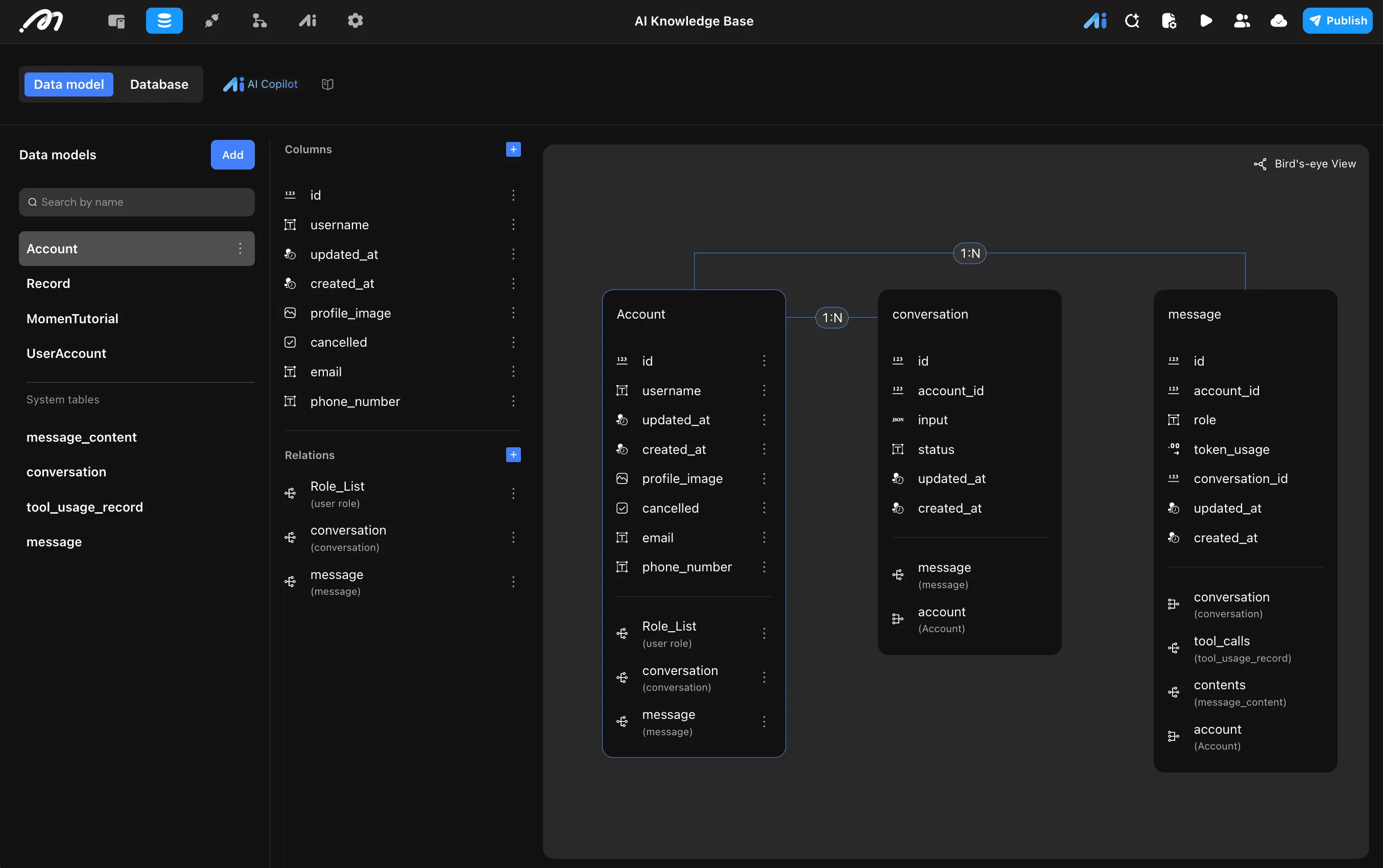 1. Users Table (Account)
This table handles authentication, login sessions, and user profiles. It is pre-configured by Momen.
- id (ID): Unique identifier
- username (Text): User's display name
- updated_at (Date/Time): Last update timestamp
- created_at (Date/Time): Account creation timestamp
- profile_image (Image): User's avatar
- cancelled (Boolean): Account cancellation status
- email (Text): User's email address
- phone_number (Text): User's phone number
- Relations: Role_List, conversation, message
Stores individual chat records/questions from users.
- ID (ID): Unique identifier
- Created_at (Date/Time): Record creation timestamp
- Updated_at (Date/Time): Last update timestamp
- Context (Text): The context or content of the record
- Role (Text): Differentiates between 'user' and 'assistant'
- Account Id (Relation): Links to the Users table
- Question_Type (Text): Type of question asked
- Relations: user (User Account)
Stores knowledge base content for the AI to reference.
- ID (ID): Unique identifier
- Created_at (Date/Time): Content creation timestamp
- Updated_at (Date/Time): Last update timestamp
- Title (Text): Title of the knowledge article
- index_in_title (Text): Index reference for the article
- Content (Text): The actual knowledge base content
Extended user profile information.
- ID (ID): Unique identifier
- Created_at (Date/Time): Creation timestamp
- Updated_at (Date/Time): Last update timestamp
- Relations: records (Record)
Stores the metadata for distinct chat sessions.
- id (ID): Unique identifier
- account_id (Relation): Links to the Users table
- input (Text): The title or initial input of the chat session
- status (Text): Current status of the conversation
- updated_at (Date/Time): Last update timestamp
- created_at (Date/Time): Creation timestamp
- Relations: message, account
Stores individual chat messages within a session.
- id (ID): Unique identifier
- account_id (Relation): Links to the Users table
- role (Text): Differentiates between 'user' and 'assistant'
- token_usage (Number): Token count for this message
- conversation_id (Relation): Links to the Conversations table
- updated_at (Date/Time): Last update timestamp
- created_at (Date/Time): Creation timestamp
- Relations: conversation, tool_calls, contents, account
Tracks AI tool/function calls made during message generation.
- id (ID): Unique identifier
- name (Text): Name of the tool called
- call_id (Text): Unique identifier for the tool call
- type (Text): Type of tool
- request (Text): The request payload sent to the tool
- response (Text): The response received from the tool
- message_id (Relation): Links to the Messages table
- updated_at (Date/Time): Last update timestamp
- created_at (Date/Time): Creation timestamp
- Relations: message
Stores multimodal content for messages.
- id (ID): Unique identifier
- type (Text): Content type (text, image, video, file, json)
- text (Text): Text content
- image (Image): Image content
- json (Text): JSON structured content
- message_id (Relation): Links to the Messages table
- updated_at (Date/Time): Last update timestamp
- created_at (Date/Time): Creation timestamp
- video (Video): Video content
- file (File): File attachment
- Relations: message
2. Building the Visual Interface
Momen uses a responsive layout system based on Flexbox. The AI Knowledge Base template includes pre-built responsive views for Desktop and Phone.
Page Structure
The Chat Bot page is organized with the following component hierarchy:
Desktop (Primary)├── Header View │ ├── Template Logo │ └── Custom View │ ├── docs_View (docs Image_Copy, Image, Text) │ └── video_View (video Image, Image, Text) ├── ChatBot View │ └── Record View │ └── Record List │ └── Record Item │ └── Record Conditional Container │ ├── WelcomeCase │ │ ├── Custom View (AI Image) │ │ └── WelComeView │ │ ├── WelCome Text │ │ ├── Question1 │ │ ├── Question2 │ │ ├── Question3 │ │ └── Image │ └── Generating Case │ ├── User View (AI Image) │ ├── Record Detail View (Generating Text) │ └── Image └── Bottom View
├── Header View
├── ChatBot View
└── Bottom View
Layout Fundamentals
Use the Container - View component to structure the page.
- Direction: Select Down Arrow for vertical stacking or Right Arrow Arrow for horizontal alignment.
- Alignment: Select Stack, Space-between, Evenly, or Space-around.
ChatBot View Components
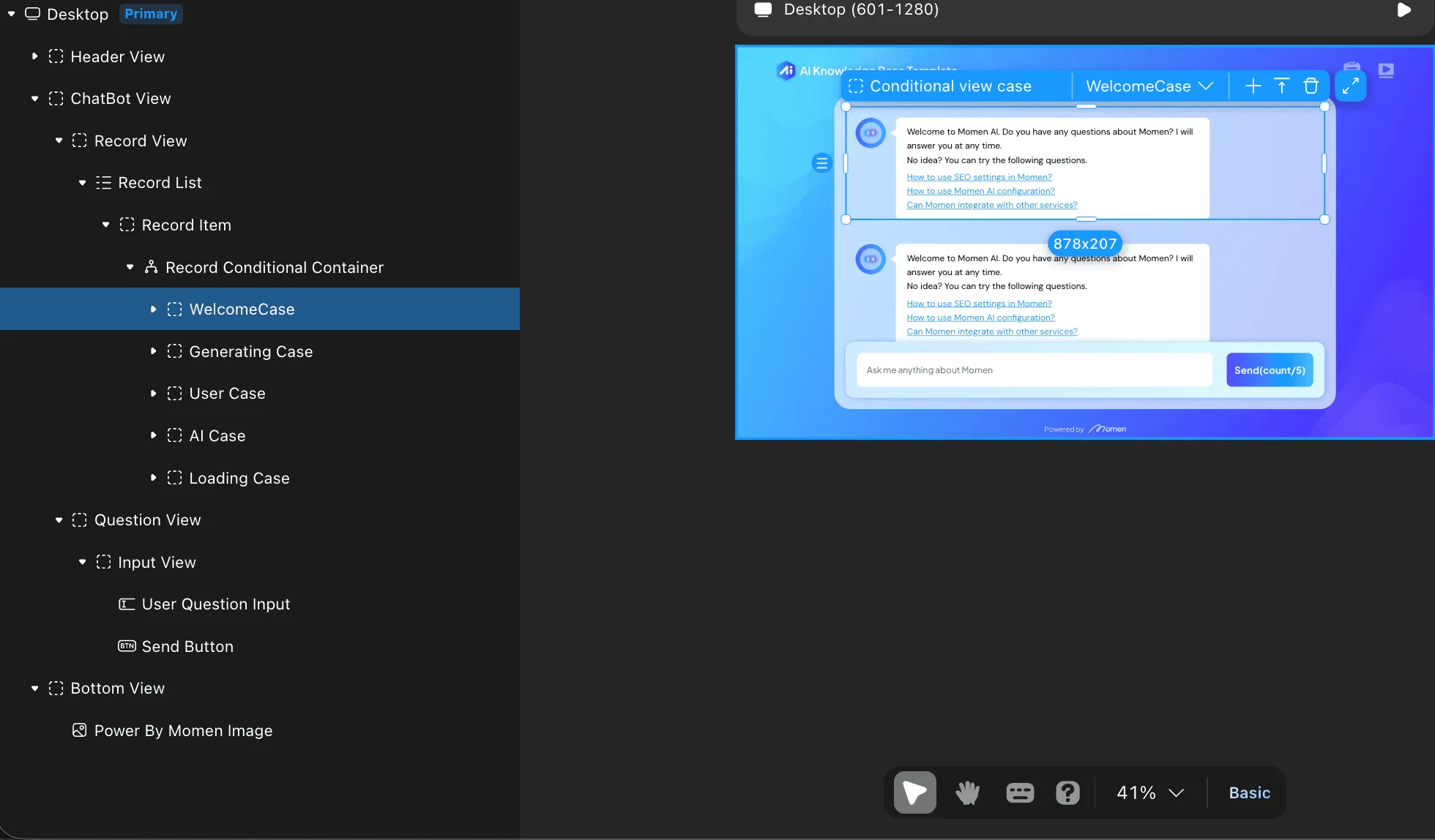 1. Record List
- Contains the
Container - Listcomponent bound to theRecordtable. - Data Source: Filters records by the current user's user id (In-Page Data -> Page Variable -> userid)
- Uses
Record Conditional Containerto switch between welcome state and chat state.
Displayed when no conversation has started:
- AI Image: The assistant's avatar
- WelCome Text: Greeting message
- Question1, Question2, Question3: Suggested starter questions
Displayed during active conversation:
- User View: Shows user's message with avatar
- Record Detail View: Displays the AI's response with generating animation
- Generating Text: Streaming text output
- Input field for user messages
- Send button with character count display
3. AI Agent Configuration
Momen allows "Bring Your Own Model" (BYOM) or the use of native AI points. For the AI Knowledge Base, we configure an agent that can answer questions based on the Momen Tutorial content.
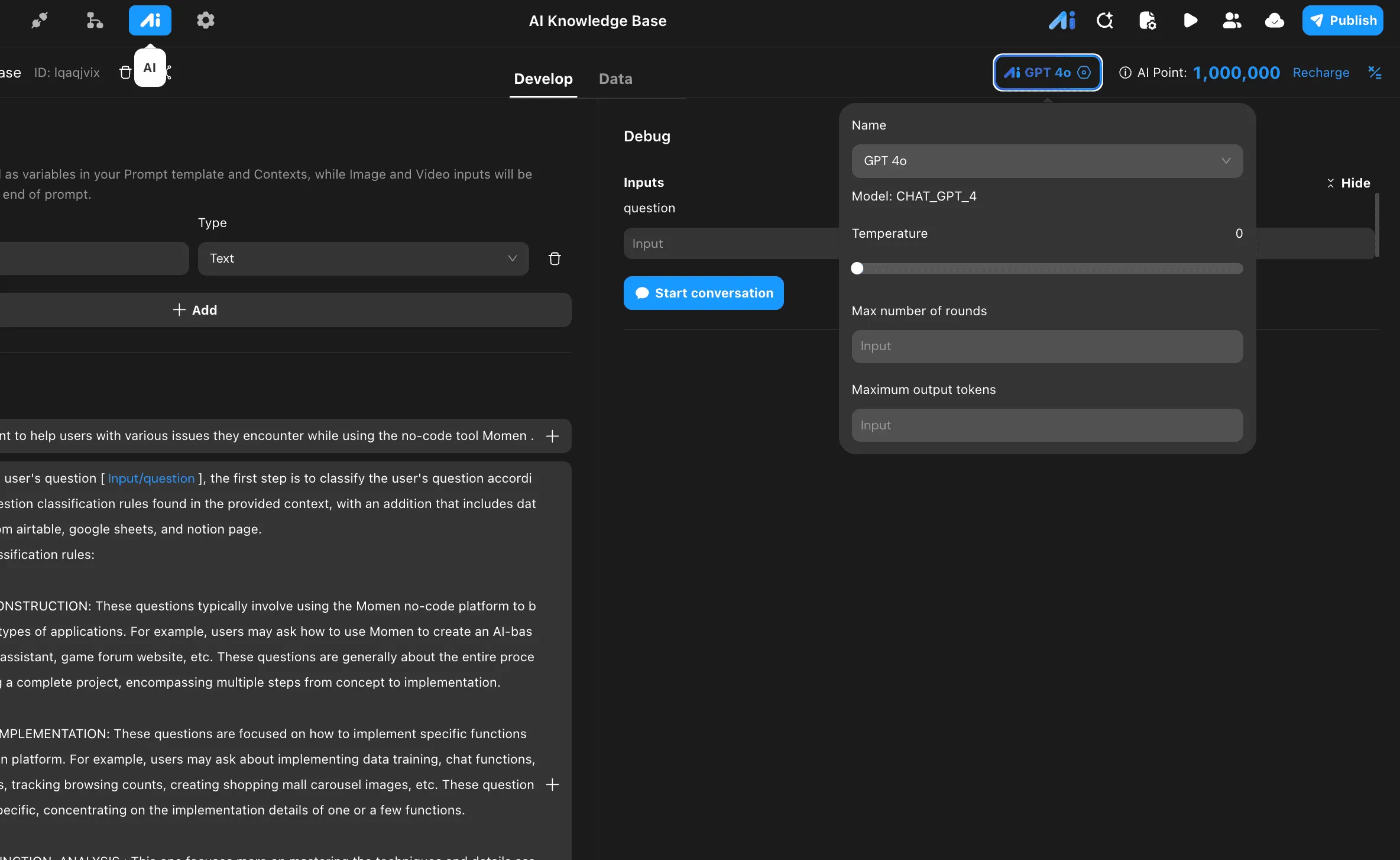
Agent Setup
- Navigate to the AI tab and create a new Agent.
- Name:
Momen AI knowledge base - Model: Select
GPT 4ofrom the dropdown. - Temperature: Set to
0for consistent, deterministic responses.
Inputs Configuration
Define the input variables that will be passed to the agent: Name: question, Type: Text
Text-based inputs are used as variables in your Prompt template and Contexts, while Image and Video inputs will be automatically appended to the end of the prompt.
Prompt Template
The prompt template defines how the AI agent behaves and processes user questions.
Role:An AI assistant to help users with various issues they encounter while using the no-code tool Momen.Based on the user's question [Input/question], the first step is to classify the user's question according to the Question classification rules found in the provided context, with an addition that includes data retrieval from airtable, google sheets, and notion page. Question classification rules: PROJECT_CONSTRUCTION: These questions typically involve using the Momen no-code platform to build specific types of applications. For example, users may ask how to use Momen to create an AI-based shopping assistant, game forum website, etc. These questions are generally about the entire process of building a complete project, encompassing multiple steps from concept to implementation. FUNCTION_IMPLEMENTATION: These questions are focused on how to implement specific functions on the Momen platform. For example, users may ask about implementing data training, chat functions, login features, tracking browsing counts, creating shopping mall carousel images, etc. These questions are more specific, concentrating on the implementation details of one or a few functions. MOMENT_FUNCTION_ANALYSIS: This one focuses more on mastering the techniques and details associated with using specific functions or components in Momen. For instance, questions might pertain to configuring hyperlinks, displaying data on pages, utilizing countdown components, adding backend data, the impact of remote data, etc. These inquiries concentrate on a profound comprehension of specific implementation functions in Momen. COMPUTING_POWER: Questions in this category mainly focus on Momen platform's performance parameters, computing resources (computing power), and related costs. For example, inquiries might concern the relationship between Momen's performance and databases, the cost of AppToken, the features and limitations of Momen's basic free version (like support for payment functions, presence of watermarks), the free and paid standards of Momen AI, the contents of package upgrades (such as payment functions), Momen platform's traffic limits, whether platform usage is free, whether sample production requires payment, and Momen's overall pricing structure. COMPETITIVE_COMPARISON: These questions often involve comparisons between Momen and other no-code platforms or development tools in terms of functions, performance, pricing, etc. ERROR_MESSAGES: These questions involve specific error messages encountered while using the Momen platform. For example, users may encounter error prompts when deleting table relationships, such as missing specific properties or fields; or token limitation errors when using AI models. These questions usually require specific technical support to resolve and may indicate challenging aspects of using the platform or areas for improvement. The second step is to answer the user's question [Input/question] based on the relevant content found in the project's database.
Please write the results of the first step's question classification into the "question_type" field. Then, provide concise and accurate answers to the user's question only based on the provided knowledge base content only, with proper line breaks. If you cannot find an answer, respond with "Sorry, your question is too broad. Please try asking more specific questions." Regardless of whether you find an answer or not, include the response in the "answer" field.Contexts
The content retrieved from the knowledge base will be sent to the large model along with preset prompts, providing the background knowledge needed to perform tasks.
- Data: Connect to 1 data source (e.g., Momen Tutorial table)
- API: Connect to 3 API sources (e.g., Airtable, Google Sheets, Notion)
Tools
The LLM will autonomously decide whether to use tools and which tools to use based on the specific context:
- Actionflow: Execute custom actionflows
- API: Call external APIs
- Agent: Invoke other AI agents
Outputs Configuration
Set the output type to Structured to receive a structured JSON response:
OBJECT(2) body
  ├── STRING answer
  └── STRING question_type
This structured output allows the Actionflow to extract:
answer: The AI's response to display to the userquestion_type: The classification category for analytics and routing
4. Logic and Actionflows
Actionflows define the behavior of the application, connecting UI events to backend logic.
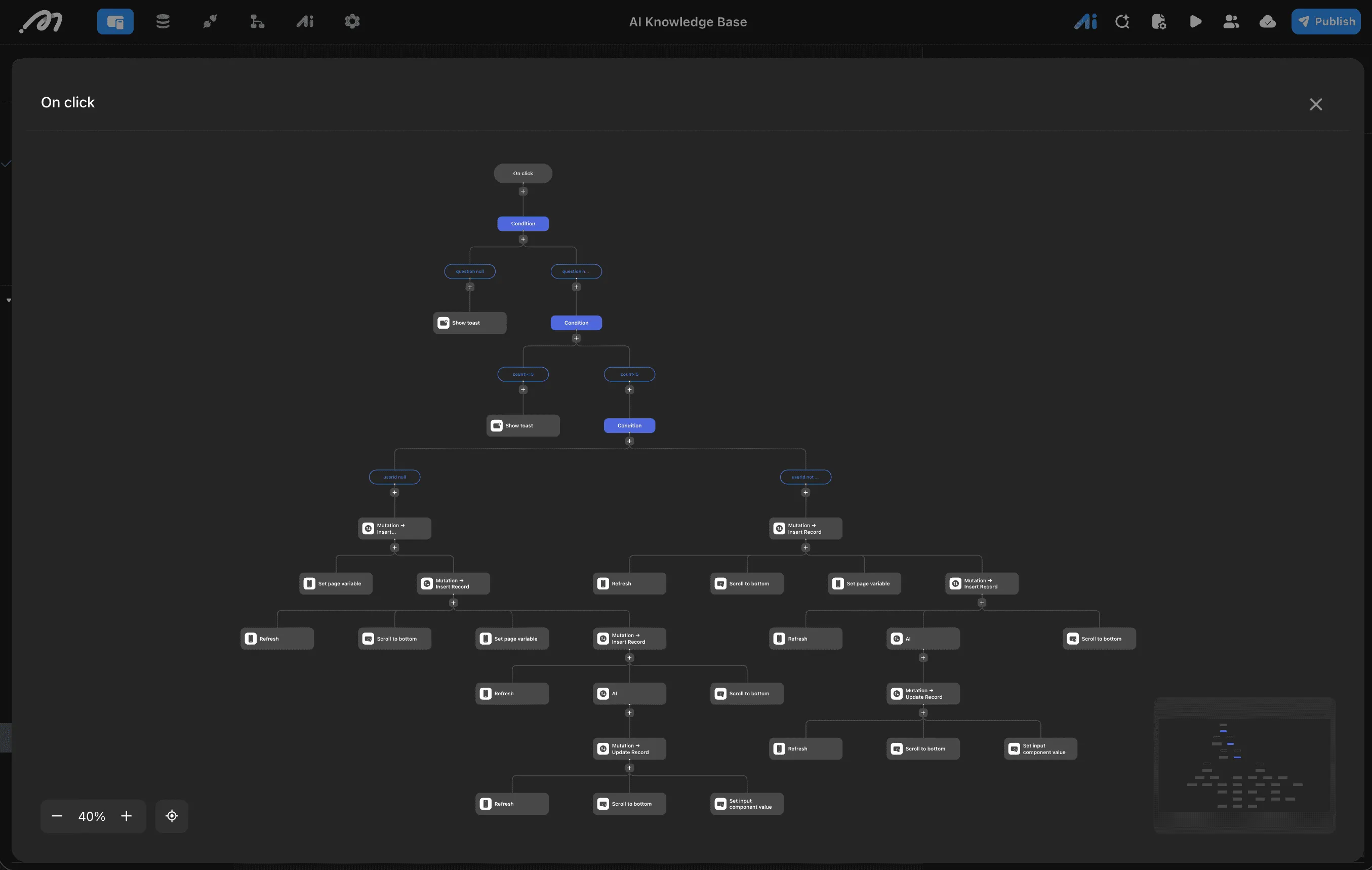
Send Button On Click Workflow
Select the "Send" button in the Bottom View and configure the On Click event. The complete flow includes validation, rate limiting, and user authentication checks.
Level 1: Input Validation
On click
    └── Condition: Check if question is null
            ├── question null → Show toast ("Please enter a question")
            └── question not null → Continue to Level 2
Level 2: Rate Limiting
Condition: Check message count
    ├── count >= 5 → Show toast ("Rate limit reached")
    └── count < 5 → Continue to Level 3
Level 3: User Authentication Check
Condition: Check if userid is null
    ├── userid null → Anonymous User Flow
    └── userid not null → Authenticated User Flow
Anonymous User Flow (userid null)
When the user is not logged in:
1. Mutation → Insert Record (Create anonymous user session)
   │
   ├── Set page variable (Store session info)
   └── Mutation → Insert Record (Save user's question)
       │
       ├── Refresh (Update record list)
       ├── Scroll to bottom (Show latest message)
       ├── Set page variable (Update state)
       └── Mutation → Insert Record (Create AI placeholder)
           │
           └── AI (Trigger AI Agent)
               │
               └── Mutation → Update Record (Save AI response)
                   │
                   ├── Scroll to bottom
                   └── Set input component value (Clear input)
Authenticated User Flow (userid not null)
When the user is logged in:
1. Mutation → Insert Record (Save user's question to Record table)
   │
   ├── Refresh (Update record list)
   ├── Scroll to bottom (Show latest message)
   ├── Set page variable (Update loading state)
   └── Mutation → Insert Record (Create AI response placeholder)
       │
       ├── Refresh
       └── AI (Trigger AI Agent with question input)
           │
           └── Mutation → Update Record (Update placeholder with AI response)
               │
               ├── Refresh (Final refresh)
               ├── Scroll to bottom (Scroll to AI response)
               └── Set input component value (Clear input field)
Actionflow Node Details
| Node | Action | Description |
|---|---|---|
| Mutation → Insert Record | Create Data | Inserts a new record into the Record table with user's question or AI response |
| Refresh | Refresh Data | Refreshes the Record List to show new messages |
| Scroll to bottom | UI Action | Scrolls the chat view to display the latest message |
| Set page variable | Set State | Updates page variables like loading state or user session |
| AI | AI Agent | Triggers the Momen AI knowledge base agent with the question input |
| Mutation → Update Record | Update Data | Updates the AI placeholder record with the actual response |
| Set input component value | UI Action | Clears the input field after submission |
| Show toast | UI Action | Displays error or info messages to the user |
Starter Question Click Handler
For Question1, Question2, Question3 in the WelcomeCase:
On Click Event:- Set the input field value to the question text
- Trigger the same submission workflow as the Send button
5. Custom Code Extensions
When the visual editor limitations are reached, Momen supports custom React components. This is essential for features like complex charts, rich text editors, or syntax highlighting.
Development Lifecycle
- CLI Setup: Use the Momen CLI to generate a local React project.
- Coding: Write standard React/TypeScript code.
- Deploy: Push the component to the Momen cloud, making it available in the visual editor's "Custom" library.
Example: Markdown Renderer
To render AI responses nicely, a custom Markdown component is often required.
import React from 'react';
import ReactMarkdown from 'react-markdown';
import { Prism as SyntaxHighlighter } from 'react-syntax-highlighter';
import { vscDarkPlus } from 'react-syntax-highlighter/dist/esm/styles/prism';

interface MarkdownProps {
  content: string;
}

const MarkdownRenderer: React.FC<MarkdownProps> = ({ content }) => {
  return (
    <div className="markdown-body" style={{ width: '100%', fontSize: '14px' }}>
      <ReactMarkdown
        components={{
          code({node, inline, className, children, ...props}) {
            const match = /language-(\w+)/.exec(className || '')
            return !inline && match ? (
              <SyntaxHighlighter
                style={vscDarkPlus}
                language={match[1]}
                PreTag="div"
                {...props}
              >
                {String(children).replace(/\n$/, '')}
              </SyntaxHighlighter>
            ) : (
              <code className={className} {...props}>
                {children}
              </code>
            )
          }
        }}
      >
        {content}
      </ReactMarkdown>
    </div>
  );
};

export default MarkdownRenderer;
Once pushed, drag this component into the List Item created in Section 2 and bind its content prop to item.content.
6. API Integration
Momen acts as a secure backend proxy for external APIs.
- Configuration: Go to the API tab. Enter the Base URL, Headers (e.g., Authorization tokens), and Endpoints.
- Usage: In any Actionflow, add a
Request APInode. - Data Handling: The response from the API is available immediately in the subsequent steps of the Actionflow, allowing you to save it to the database or display it via Page States.
7. Deployment
PreviewClicking Preview generates a temporary build. This is useful for testing logic and layout responsiveness without affecting the live environment.
PublishClicking Publish deploys the application to the production environment. Momen automatically handles:
- SSL Certification
- CDN Content Delivery
- Database Scaling
In the project settings, you can configure a custom domain (CNAME record) to whitelist the application for public access.