Using OpenClaw: A Complete Guide to the Gateway Dashboard

Set up OpenClaw with One-click
One-click deploy OpenClaw using the OpenClaw template on Zeabur (Dedicated Server required). Copy the Web UI URL from the Instructions tab and open it in your browser. Set your AI model in Settings or via environment variables, then test in Chat. Add Telegram, WhatsApp, or other channels from the Channels section when ready.
This guide walks through every section of the Gateway Dashboard — what each primitive is, how it fits together, and the key actions you'll take daily.
How OpenClaw Is Structured
Before diving into individual screens, understand the four core primitives that everything else builds on:
- Gateway — The always-on control plane. Owns all channel connections, routes messages to agents, and serves the dashboard.
- Channels — Messaging integrations (WhatsApp, Telegram, Discord, etc.) — how the outside world reaches your agent.
- Agents — Isolated LLM instances with their own workspace, model config, and session history.
- Sessions — A conversation thread. DMs collapse into a shared
mainsession; group chats stay isolated.
Skills, Cron Jobs, Nodes, and Tools all extend what agents can _do_ within a session.
The Sidebar at a Glance
Your dashboard sidebar is organized into four groups:
Chat
  └── Chat                    ← Browser-based WebChat with your agent

Control
  ├── Overview                ← Gateway status, entry points, health read
  ├── Channels                ← WhatsApp, Telegram, Discord, Google Chat…
  ├── Instances                ← Presence beacons from connected clients and nodes
  ├── Sessions                 ← Active session keys and per-session overrides
  ├── Usage                    ← Token + cost tracking
  └── Cron Jobs                ← Schedule wakeups and recurring agent runs

Agent
  ├── Agents                  ← Manage agent workspaces, tools, and identities
  ├── Skills                  ← Manage skill availability and API key injection
  └── Nodes                    ← Paired devices, capabilities, command exposure

Settings
  ├── Config                  ← Full JSON config editor and settings form
  ├── Debug                   ← Live gateway logs
  └── Logs                     ← Persisted run history
Chat
The Chat tab is the fastest way to talk to your agent without connecting any external channel. It connects directly to the Gateway over WebSocket and starts a main session.
Use it to:
- Test agent behavior after a config change
- Try out new skills before exposing them to a channel
- Debug model responses in real time
The chat UI reflects what any connected channel user would see — it's not a special mode, just a built-in channel.
Control → Overview
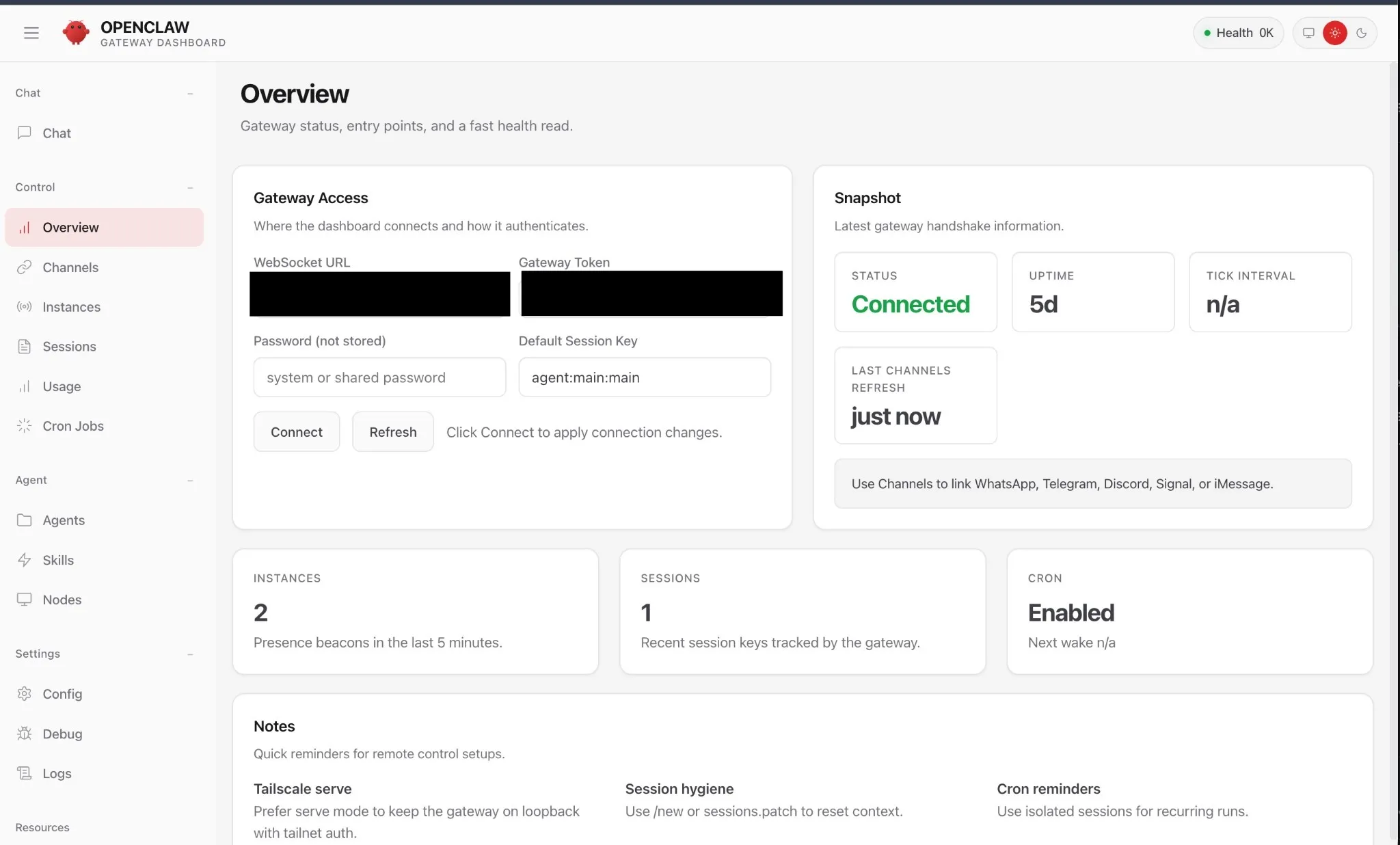
The Overview page shows Gateway status, entry points, and a fast health read. Gateway Access is where the dashboard connects and authenticates (WebSocket URL, Gateway Token, Default Session Key; use Connect and Refresh). The Snapshot card shows STATUS, UPTIME, TICK INTERVAL, and LAST CHANNELS REFRESH. Summary cards show INSTANCES (presence beacons in the last 5 minutes), SESSIONS (recent session keys tracked by the gateway), and CRON (e.g. Enabled, Next wake). Notes gives quick reminders for remote control (e.g. Tailscale serve, session hygiene, cron). Health: OK in the top-right means the Gateway and WebSocket control plane are responding — if it turns red, check Settings → Debug and Logs.
Control → Channels
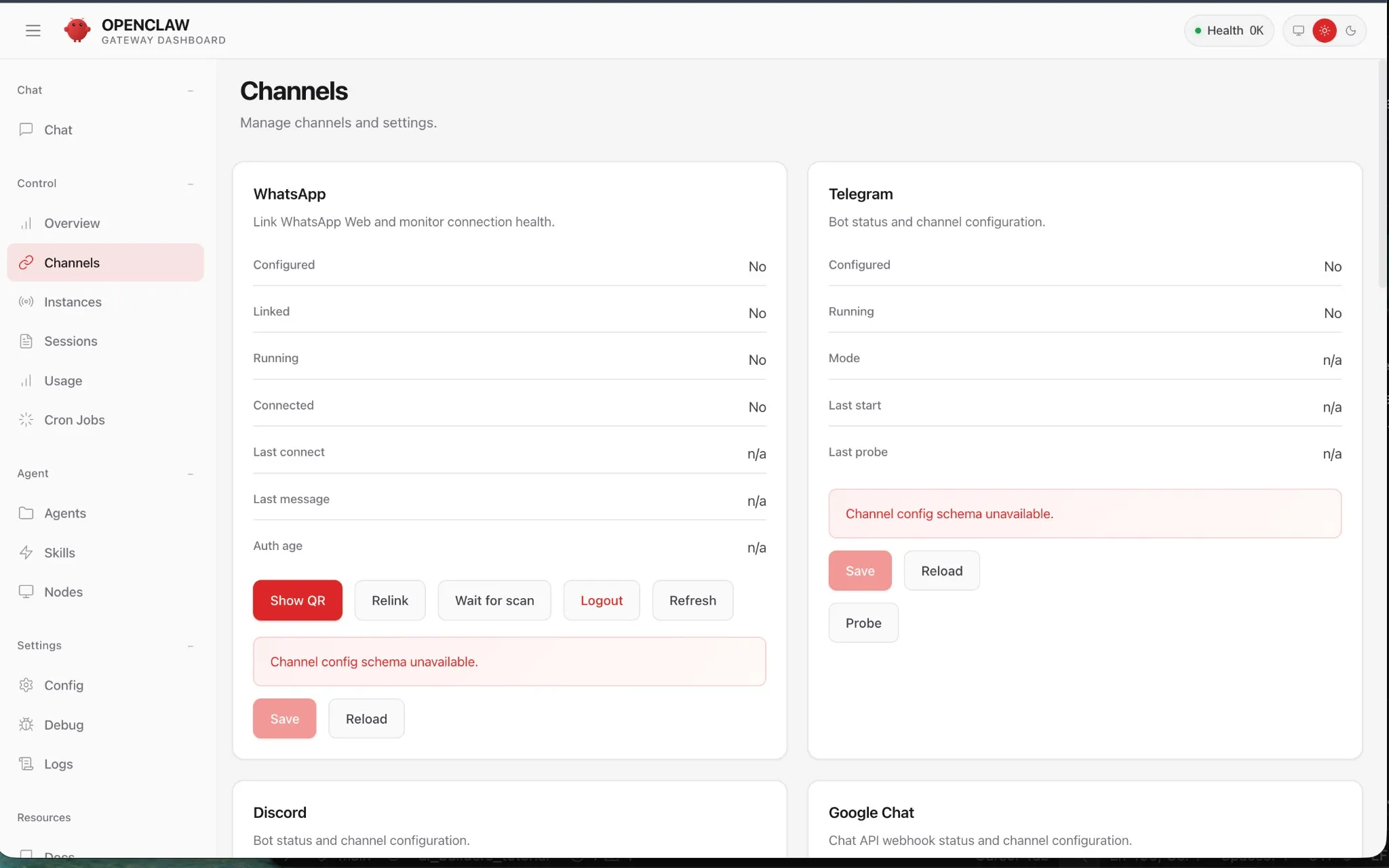
Channels are how external messaging platforms connect to your Gateway. You’ll see four panels: WhatsApp, Telegram, Discord, and Google Chat. Each shows the same status fields:
- Configured — A config entry exists in
openclaw.jsonfor this channel. - Running — The adapter process is actively polling or connected.
- Linked / Connected — Auth credentials are valid and the session is live.
- Last message — Timestamp of the most recent inbound message.
Connecting WhatsApp
WhatsApp uses the Baileys library and authenticates via QR code scan — no bot token needed.
- Click Show QR in the WhatsApp panel.
- Open WhatsApp on your phone → Settings → Linked Devices → Link a Device.
- Scan the QR code shown in the dashboard.
- The panel will update: Linked = Yes, Connected = Yes.
Use Relink if your session expires. Use Wait for scan to keep the QR alive longer on slow connections.
// In your config (Settings → Config), add:
{
  "channels": {
    "whatsapp": {
      "enabled": true,
      "allowFrom": ["+65XXXXXXXX"]
    }
  }
}
> allowFrom is your allowlist. Only numbers listed here can message your agent. Leave it empty to allow all (not recommended in production).
Connecting Telegram
Telegram uses the grammY library with a bot token. The error "Channel config schema unavailable" means the bot token has not been set yet.
- Open Telegram → search
@BotFather→/newbot. - Copy the bot token (format:
123456789:ABCdef...). - Go to Settings → Config and add:
{
  "channels": {
    "telegram": {
      "enabled": true,
      "botToken": "123456789:ABCdef...",
      "dmPolicy": "pairing",
      "allowFrom": ["tg:YOUR_TELEGRAM_USER_ID"]
    }
  }
}
- Click Save then Reload in the Telegram channel panel.
- Open your bot in Telegram and send
/startto complete pairing.
pairing— agent sends a one-time code you must confirm (safest)allowlist— onlyallowFromusers can reach the agentopen— anyone who finds your bot can message it (avoid on public bots)
Connecting Discord and Google Chat
Discord uses a bot token from the Discord Developer Portal. Google Chat uses a webhook URL from your Google Workspace admin. Both follow the same pattern: add config → Save → Reload → verify Connected = Yes.
Control → Instances
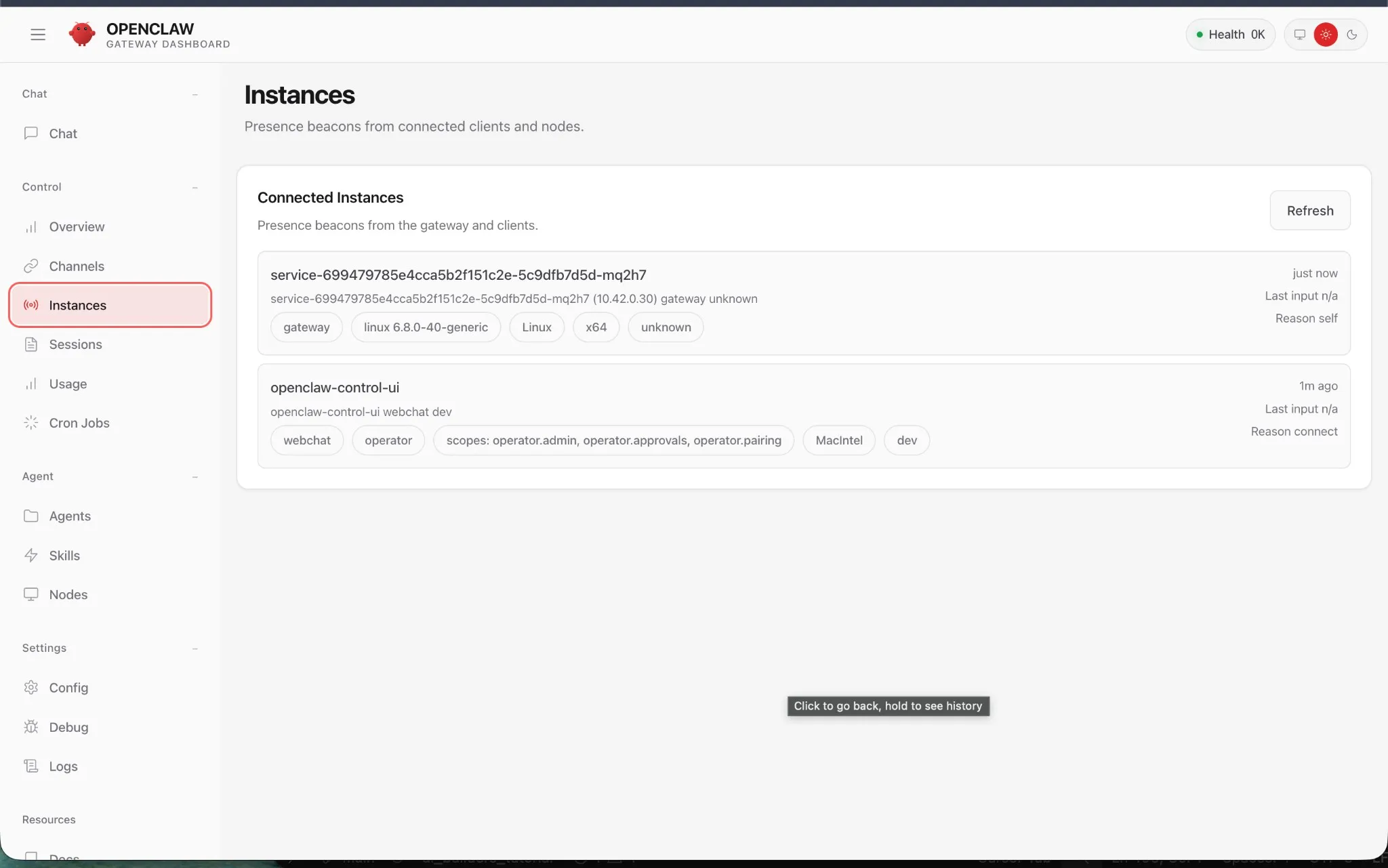 Instances lists presence beacons from connected clients and nodes. The Connected Instances section shows each instance with its ID, description (e.g. gateway host or
 openclaw-control-ui webchat), tags (e.g. gateway, webchat, operator), last-seen time, and reason (e.g. self, connect). Use Refresh to update the list.
Control → Sessions
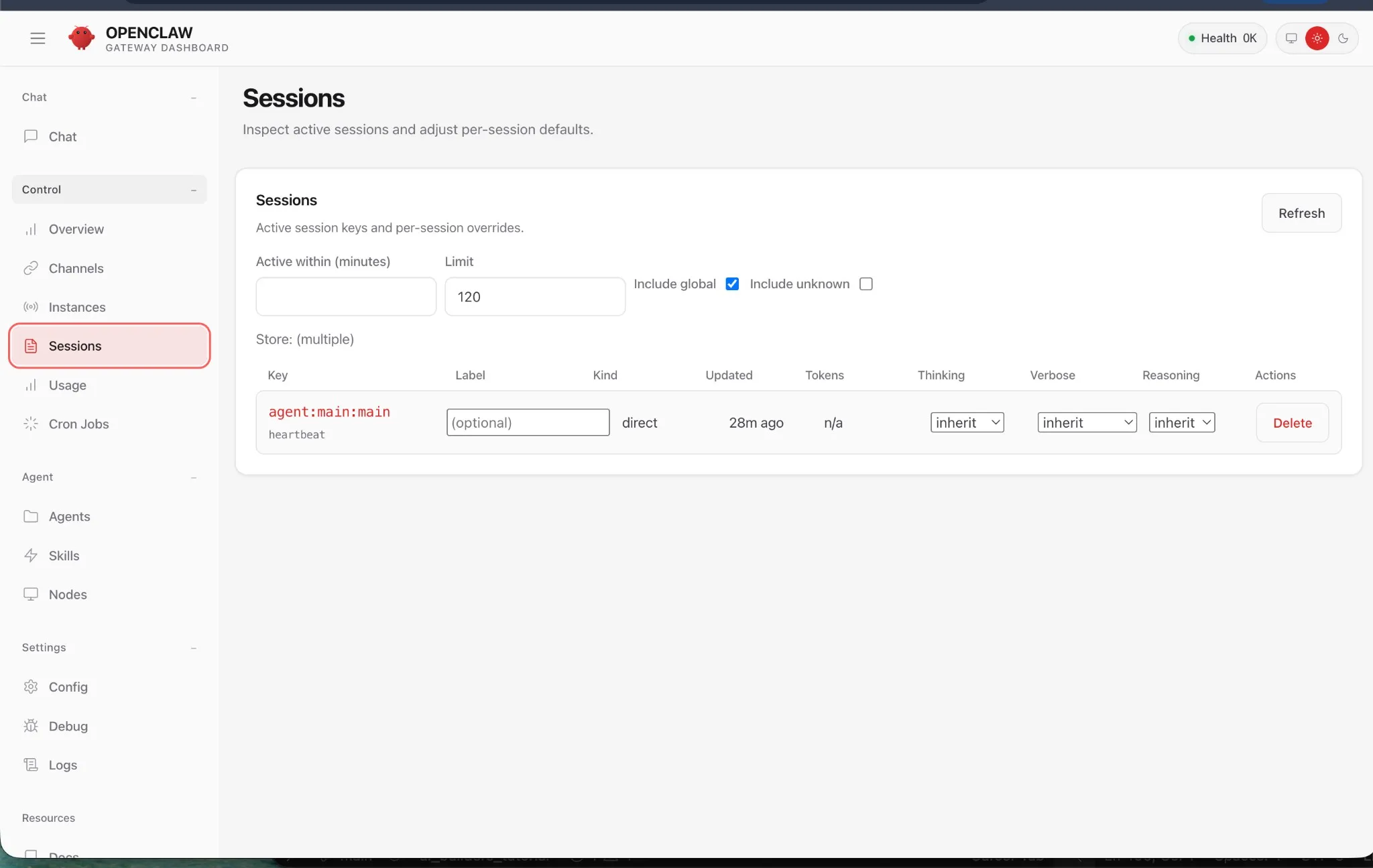
Sessions are conversation threads. The Sessions section shows Active session keys and per-session overrides. Use the filters Active within (minutes), Limit, Include global, and Include unknown, then Refresh. The table columns are Key (e.g. agent:main:main), Label (optional), Kind (e.g. direct), Updated, Tokens, Thinking, Verbose, Reasoning, and Actions (e.g. Delete). Click any session to open its full history.
Sessions have two behaviors:
- Direct messages from the same person collapse into a shared persistent
mainsession. - Group chats each get their own isolated session, optionally sandboxed in Docker.
Control → Usage
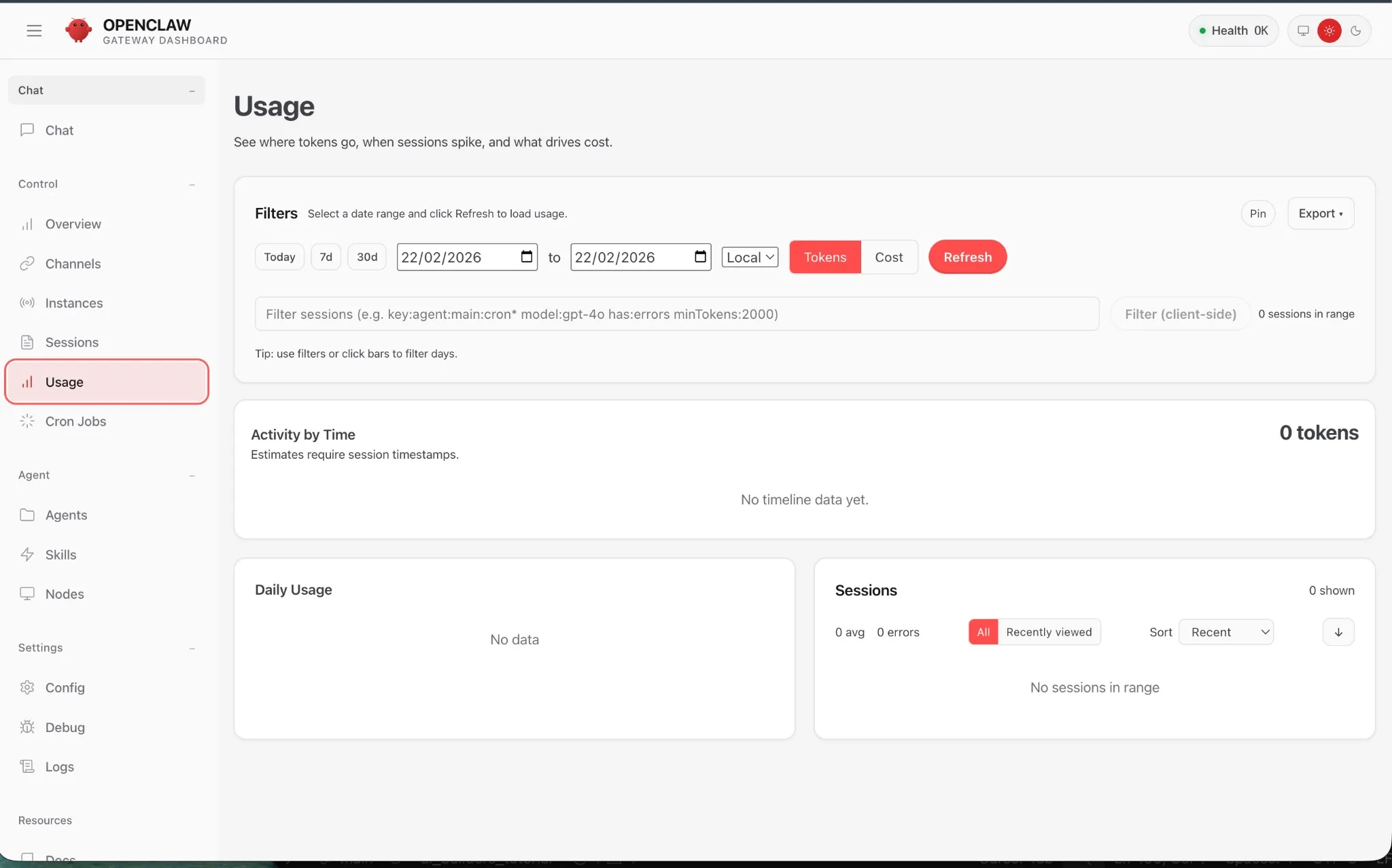
The Usage tab breaks down token consumption by:
- Model (e.g.,
anthropic/claude-sonnet-4-5,openai/gpt-5.2) - Agent ID
- Channel
- Time range (today, last 7 days, last 30 days)
Use this to catch runaway cron jobs or unexpectedly expensive sessions before your API bill arrives.
Agent → Agents
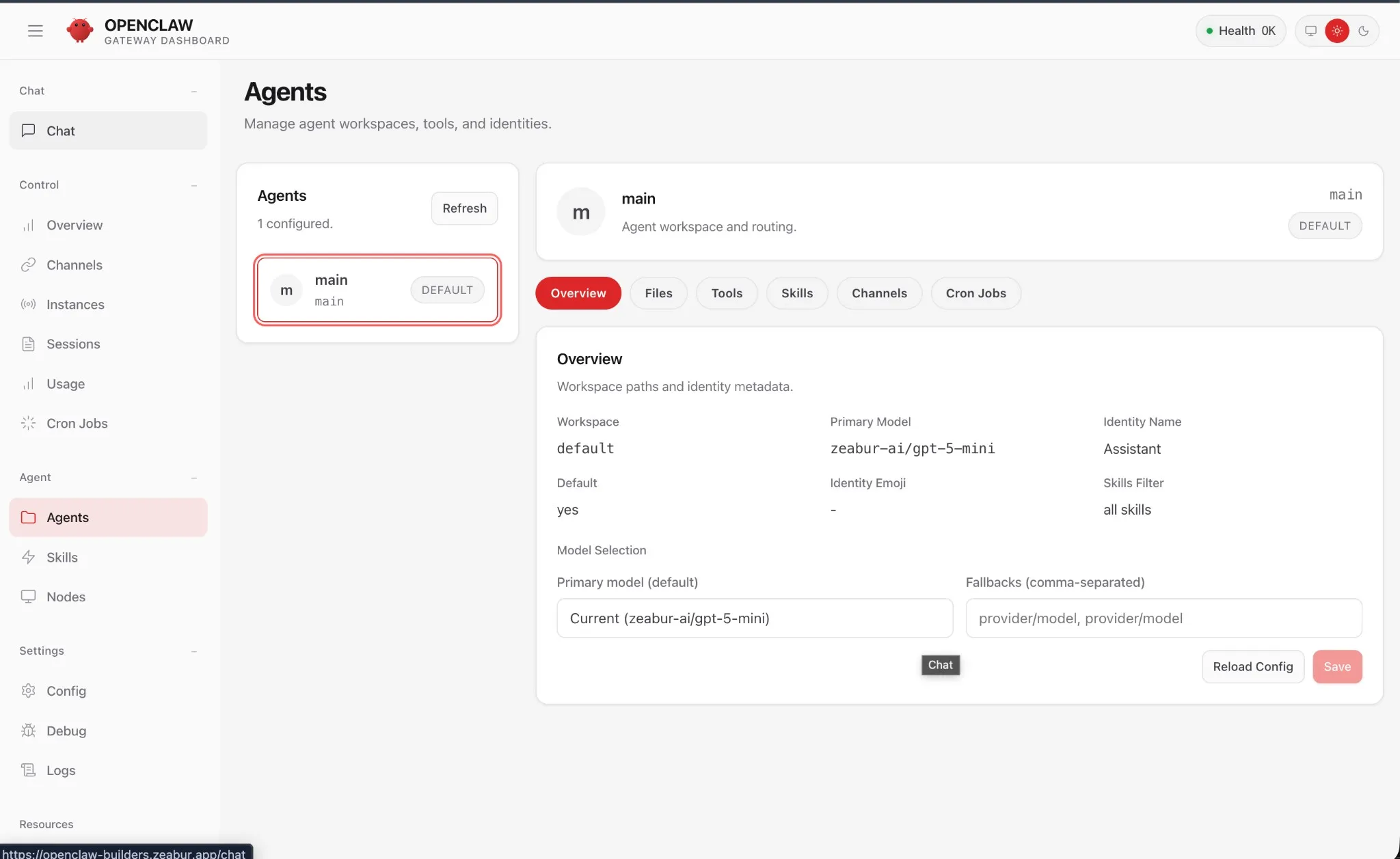
The Agents page (Manage agent workspaces, tools, and identities) lists configured agents (e.g. main with a DEFAULT badge). Selecting an agent shows tabs: Overview, Files, Tools, Skills, Channels, Cron Jobs. The Overview tab shows Workspace paths and identity metadata (Workspace, Primary Model, Default, Identity Name, Identity Emoji, Skills Filter) and Model Selection (Primary model (default), Fallbacks (comma-separated)). Use Chat, Reload Config, and Save to apply changes.
An Agent is an isolated LLM instance with its own workspace, model config, system prompt/persona, and tool/skill access. Your default agent is main. You can define additional agents and bind them to specific channels or accounts:
{
  "agents": {
    "list": [
      {
        "id": "main",
        "default": true,
        "workspace": "~/.openclaw/workspace-main",
        "model": {
          "primary": "anthropic/claude-sonnet-4-5",
          "fallbacks": ["openai/gpt-5.2"]
        }
      },
      {
        "id": "work",
        "workspace": "~/.openclaw/workspace-work",
        "model": {
          "primary": "openai/gpt-5.2"
        }
      }
    ]
  },
  "bindings": [
    { "agentId": "work", "match": { "channel": "slack" } },
    { "agentId": "main", "match": { "channel": "telegram" } }
  ]
}
This routes all Slack messages to the work agent and all Telegram messages to main — each with its own isolated file workspace and memory.
Agent → Skills
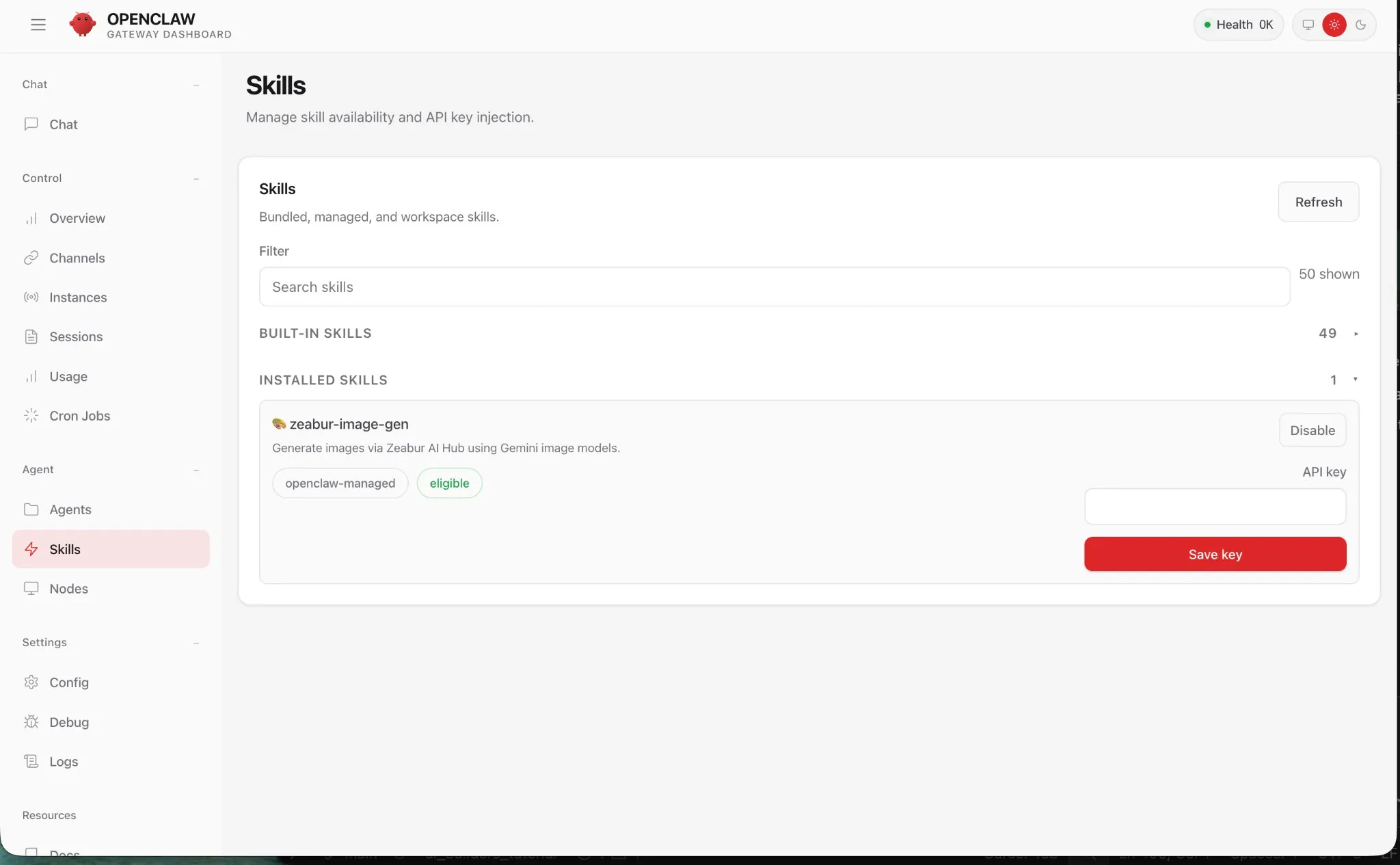
Skills extend what your agent can do beyond basic chat. There are three types:
- Bundled — Ships with OpenClaw. Enable in config.
- Managed — ClawHub marketplace (3,500+ skills). Install with
openclaw skills install. - Workspace — Local files in your workspace. Drop a
SKILL.mdand scripts in the workspace.
The Skills panel in the dashboard shows all installed skills with their status (enabled/disabled) and a one-click toggle.
Commonly used built-in skills:web-search— Brave Search API integration for live web queriesbrowser— headless Chrome control for scraping and automationfile-manager— read/write files in the agent workspaceshell— execute bash commands (use with caution)gmail— read and send email via Gmail Pub/Sub webhook
To install a skill from ClawHub via the terminal:
openclaw skills install brave-search
openclaw skills install github-pr-summary
openclaw skills list
To write a workspace skill, create a SKILL.md in your workspace root describing what the skill does. The agent reads it automatically on startup.
Agent → Nodes
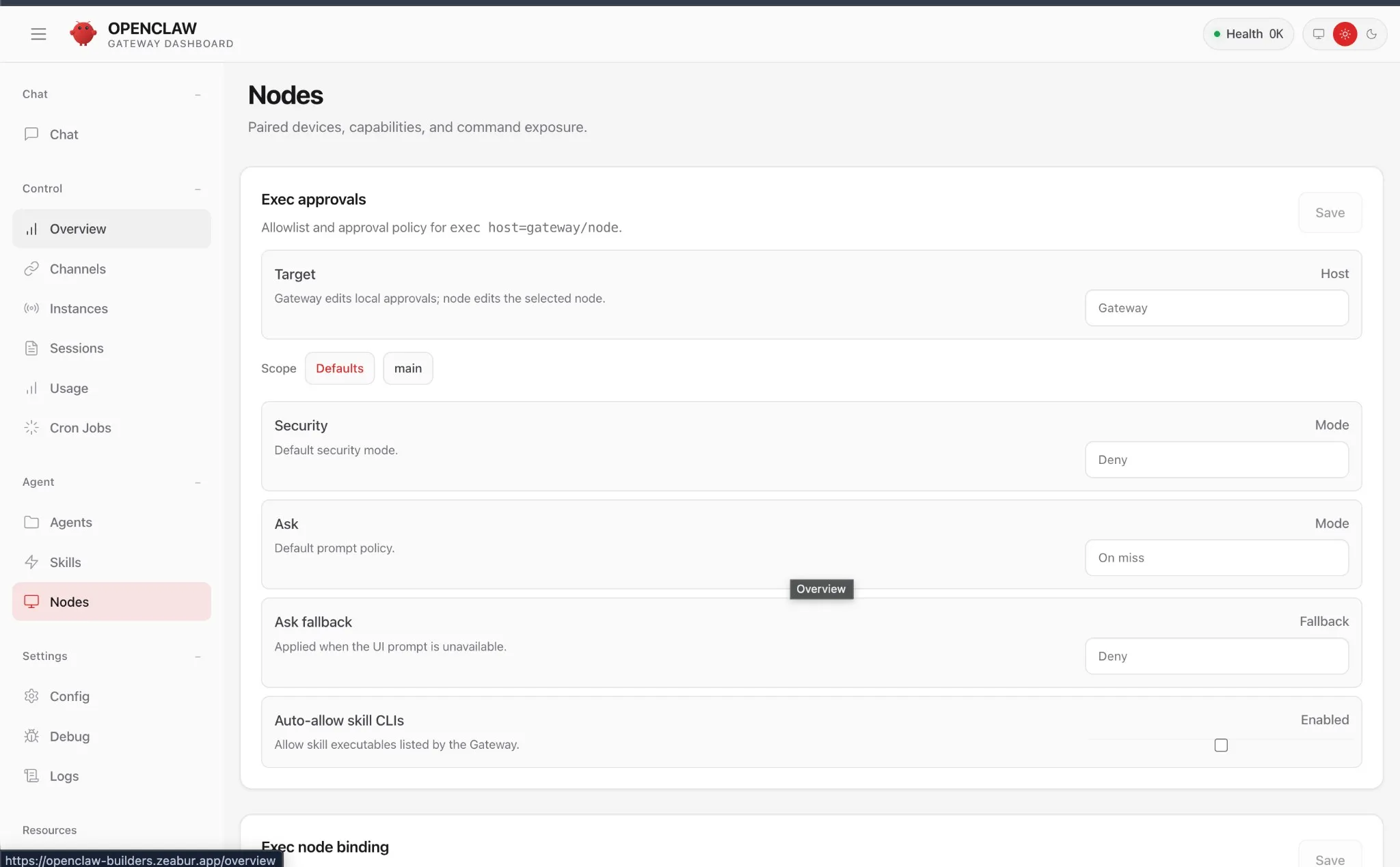 Nodes are companion device connections — macOS, iOS, or Android apps that extend the agent's senses and actuators:
camera.snap— take a photo from the device camerascreen.record— capture a screen recordinglocation.get— get the device's current GPS coordinatesnotifications.send— push a notification to the device
Nodes appear in this panel once a companion app connects to your Gateway. On Zeabur, you'll need to ensure your deployment URL is accessible from the device running the companion app.
Settings → Config
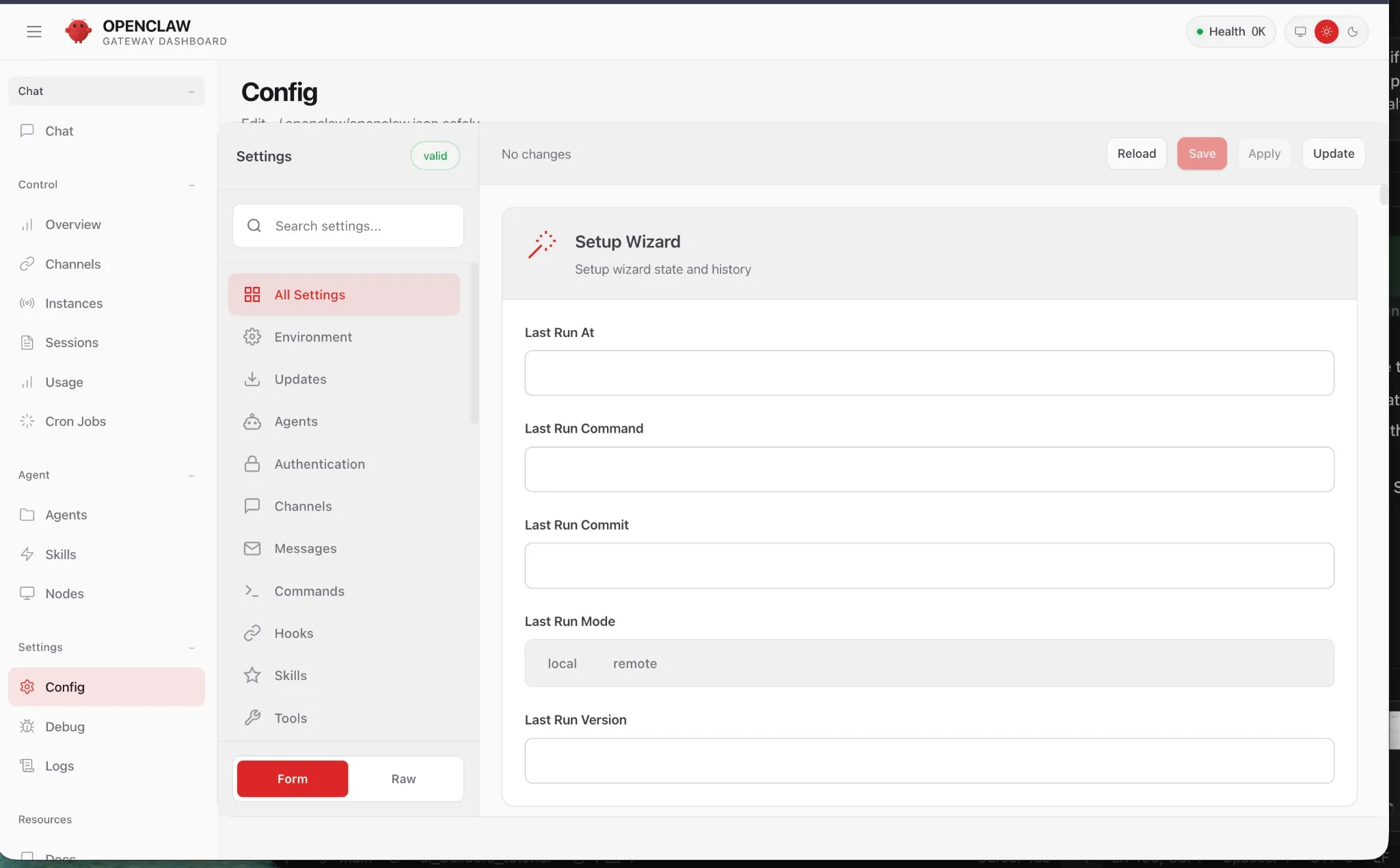
The Config page is a form-rendered view of your openclaw.json. The Settings panel shows validation (e.g. valid, No changes) and categories such as All Settings, Environment, Agents, Authentication, Channels, Messages, Commands, Hooks, Skills, Tools. Use the Form / Raw toggle to switch between the structured form and raw JSON. Reload, Save, Apply, and Update are in the top bar. A Setup Wizard section shows setup wizard state and history. Changes here hot-reload the Gateway — no restart needed for most settings.
Key sections of the config:
{
  "gateway": {
    "port": 18789,
    "auth": { "token": "your-secret-token" }
  },
  "agents": {
    "defaults": {
      "workspace": "~/.openclaw/workspace",
      "model": {
        "primary": "anthropic/claude-sonnet-4-5"
      },
      "sandbox": {
        "mode": "non-main"
      }
    }
  },
  "channels": {
    "telegram": { "enabled": true, "botToken": "..." },
    "whatsapp": { "enabled": true, "allowFrom": ["+65XXXXXXXX"] }
  },
  "tools": {
    "web": {
      "search": { "apiKey": "BSA_YOUR_BRAVE_KEY" }
    }
  }
}
sandbox.mode: "non-main" runs group chats inside per-session Docker containers, keeping your host safe from arbitrary code execution in shared contexts.
Control → Cron Jobs
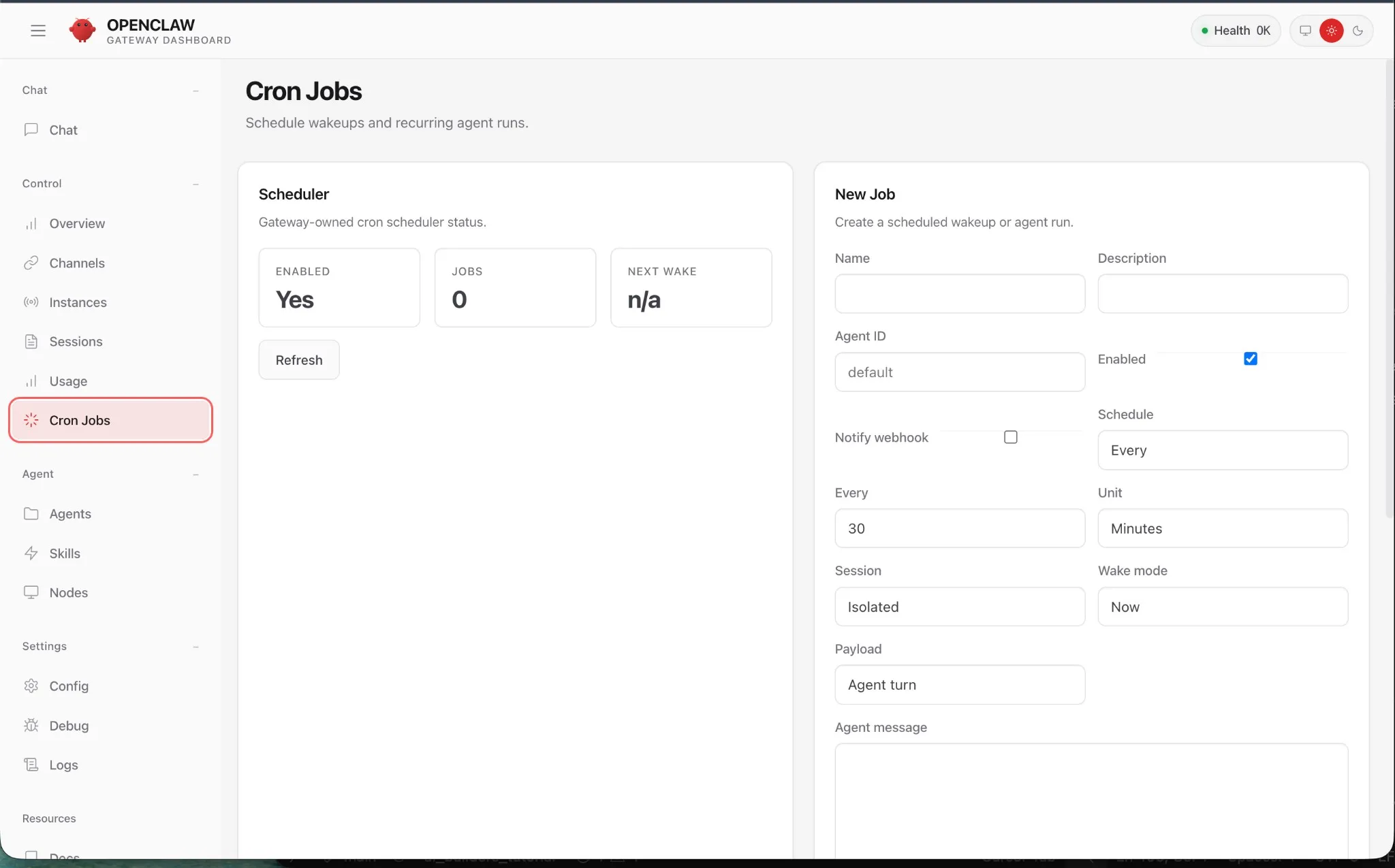
Cron Jobs let you schedule agent actions to run automatically on a time-based schedule — no inbound message required. The Scheduler card shows ENABLED, JOBS, and NEXT WAKE. Use New Job to create a scheduled wakeup or agent run.
Example use cases:- Daily 9 AM briefing sent to your Telegram
- Hourly GitHub PR summary posted to Slack
- Weekly cost report pulled from the Usage tab
Adding a Cron Job via Dashboard
- Go to Control → Cron Jobs → New Job.
- Set the schedule using standard cron syntax (or natural language in newer versions).
- Set the message the agent should receive (as if you sent it).
- Set the session key — which agent/channel session to run this in.
- Save. The job appears in the list with Last Run and Next Run timestamps.
Each job runs in an isolated auth context under its assigned agent. If a job errors, it won't crash other jobs — failures are isolated.
Settings → Debug and Logs
Debug streams live Gateway logs in the browser — equivalent toopenclaw gateway --verbose in the terminal. Use this when:
- A channel shows Connected = No but you don't know why
- A cron job ran but didn't produce the expected output
- You're testing a new skill and want to see tool call traces
Next Steps
If you're interested in setting up OpenClaw in one click, head to Zeabur and use the OpenClaw template to deploy it.