Nosana: Building an AI Agent with ElizaOS

Learn how to build, customize, and deploy your own personal AI agent using Qoder IDE, ElizaOS, and Nosana's decentralized GPU network.
This tutorial walks you through building a fully functional AI agent that runs on decentralized infrastructure. By the end, you'll have an agent you can customize for your own use cases.
What You'll Build
A personal AI assistant powered by:
- ElizaOS - An open-source AI agent framework
- Nosana - Decentralized GPU compute network
- Qoder IDE - AI-powered development environment
The agent will be able to:
- Have natural conversations
- Remember context across sessions
- Be extended with plugins for Discord, Telegram, Twitter, and more
- Run on decentralized infrastructure
Prerequisites
Before you begin, make sure you have:
- Node.js 18+ (Node.js 23+ recommended)
- pnpm - Package manager (
npm install -g pnpm) - Ollama - For local embeddings (ollama.com)
- Docker - For deployment
- Git - Version control
- Qoder IDE - AI-powered IDE (qoder.ai)
Step 1: Clone the Repository
Clone the project repository:
# Clone the repository
git clone https://github.com/theaibuilders/nosana_elizaos
cd nosana_elizaos
Open the project in Qoder IDE:
# Open with Qoder
qoder .
Qoder IDE provides AI-assisted coding that can help you customize your agent, debug issues, and write custom plugins faster.
Step 2: Install Dependencies
Install all required packages using pnpm:
pnpm install
This will install:
@elizaos/core- Core ElizaOS framework@elizaos/plugin-bootstrap- Base plugin with essential features@elizaos/plugin-openai- OpenAI-compatible API support (for Nosana)@elizaos/cli- Command-line tools
Step 3: Set Up Ollama for Embeddings
Nosana provides LLM inference but doesn't support embedding generation. We use Ollama locally for embeddings:
# Install the embedding model
ollama pull nomic-embed-text

# Start Ollama server (keep this running in a separate terminal)
ollama serve
Keep Ollama running in the background while developing. The agent needs it for memory and knowledge features.
Step 4: Configure Environment Variables
Create your .env file from the example:
cp .env.example .env
Edit .env with your configuration:
# Model name
MODEL_NAME=DeepSeek-R1-Distill-Qwen-7B

# OpenAI plugin settings (using Nosana endpoint)
OPENAI_API_KEY=nosana
OPENAI_BASE_URL=https://<your-nosana-endpoint>.node.k8s.prd.nos.ci/v1
OPENAI_SMALL_MODEL=DeepSeek-R1-Distill-Qwen-7B
OPENAI_LARGE_MODEL=DeepSeek-R1-Distill-Qwen-7B

# Local Ollama for embeddings
OPENAI_EMBEDDING_URL=http://localhost:11434/v1
OPENAI_EMBEDDING_MODEL=nomic-embed-text
OPENAI_EMBEDDING_DIMENSIONS=768

# Server configuration
SERVER_PORT=3000
AI_SDK_LOG_WARNINGS=false
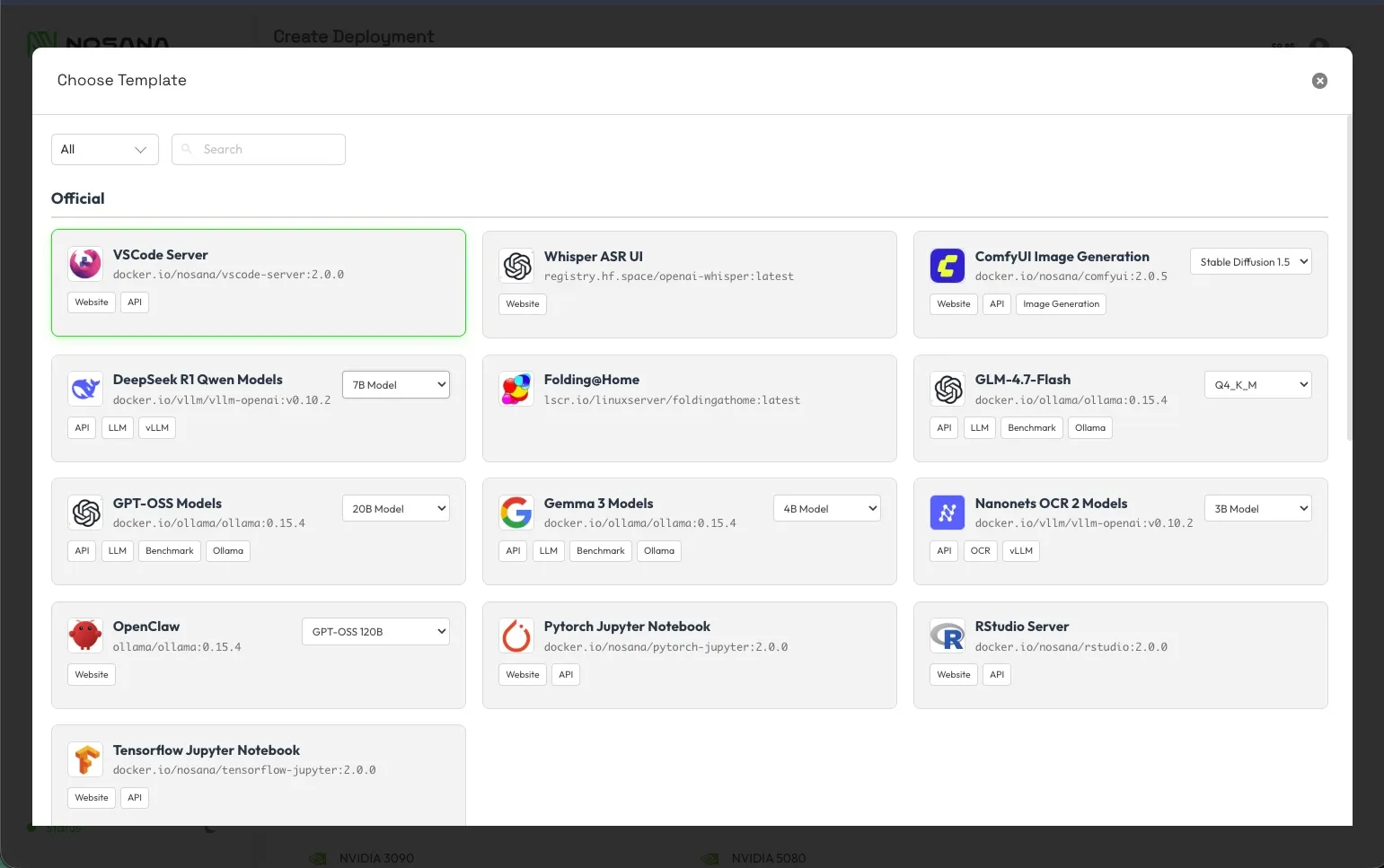
You can get your Nosana endpoint URL (which serves as the OPENAI_BASE_URL) from the Nosana dashboard by deploying a Qwen model:
Step 5: Understanding the Project Structure
Here's the key files and directories:
nosana_elizaos/
├── characters/
│   └── agent.character.json   # Agent personality & config
├── src/
│   └── index.ts               # Custom plugin (optional)
├── nos_job_def/
│   └── nosana_eliza_job_definition.json  # Deployment config
├── .env                       # Environment variables
├── Dockerfile                 # Container config
└── package.json               # Dependencies
Key Files Explained
characters/agent.character.json - Defines your agent's:
- Name and username
- Personality (system prompt)
- Bio and background
- Plugins to load
- Model settings
src/index.ts - Where you add custom:
- Actions (things your agent can do)
- Providers (data sources)
- Evaluators (decision logic)
.env - Contains:
- API endpoints
- Model configuration
- Server settings
Step 6: Customize Your Agent
Edit the Character File
Open characters/agent.character.json in Qoder IDE:
{
  "name": "MyAgent",
  "username": "myagent",
  "plugins": [
    "@elizaos/plugin-bootstrap",
    "@elizaos/plugin-openai"
  ],
  "settings": {
    "model": "DeepSeek-R1-Distill-Qwen-7B",
    "modelProvider": "openai",
    "secrets": {
      "OPENAI_API_KEY": "nosana",
      "OPENAI_BASE_URL": "https://<your-endpoint>.node.k8s.prd.nos.ci/v1"
    }
  },
  "system": "You are a helpful personal AI assistant...",
  "bio": [
    "A personal AI assistant running on decentralized infrastructure.",
    "Helps with research, task management, writing, and automation."
  ],
  "topics": ["productivity", "research", "automation"],
  "adjectives": ["helpful", "efficient", "reliable"],
  "style": {
    "all": ["Be concise and direct"],
    "chat": ["Be conversational and friendly"]
  }
}
Customize the Personality
Edit the system field to define your agent's behavior:
{
  "system": "You are Luna, a creative writing assistant. You help users brainstorm ideas, write stories, and improve their prose. You have a warm, encouraging personality and love helping people express their creativity. You give constructive feedback and always find something positive to highlight."
}
Use Qoder's AI assistant to help you write compelling system prompts. Just describe what you want your agent to do!
Step 7: Run Your Agent Locally
Start the development server:
pnpm dev
You should see:
🚀 Development servers are running:
════════════════════════════════════════════════════════════

  Backend Server: http://localhost:3000
  API Endpoint:   http://localhost:3000/api

────────────────────────────────────────────────────────────
📁 Watching for file changes...
Open http://localhost:3000 to chat with your agent!
Step 8: Add Plugins (Optional)
ElizaOS has a rich plugin ecosystem. Here's how to add capabilities:
Install a Plugin
# Add Telegram support
pnpm add @elizaos/plugin-telegram

# Add Discord support
pnpm add @elizaos/plugin-discord

# Add web search
pnpm add @elizaos/plugin-web-search
Enable the Plugin
Add it to your character file:
{
  "plugins": [
    "@elizaos/plugin-bootstrap",
    "@elizaos/plugin-openai",
    "@elizaos/plugin-telegram"
  ]
}
Available Plugins
| Plugin | Description |
|---|---|
@elizaos/plugin-bootstrap | Required base plugin |
@elizaos/plugin-openai | OpenAI-compatible LLM support |
@elizaos/plugin-telegram | Telegram bot integration |
@elizaos/plugin-discord | Discord bot integration |
@elizaos/plugin-twitter | Twitter/X automation |
@elizaos/plugin-web-search | Web search capability |
@elizaos/plugin-browser | Browser automation |
Step 9: Create Custom Actions (Advanced)
Add custom functionality in src/index.ts:
import { type Plugin, type Action, logger } from "@elizaos/core";

const greetAction: Action = {
  name: "GREET",
  description: "Send a personalized greeting",
  similes: ["SAY_HELLO", "WELCOME"],
  examples: [
    [
      { name: "user", content: { text: "Say hello to John" } },
      { name: "assistant", content: { text: "Hello John!", actions: ["GREET"] } },
    ],
  ],
  validate: async () => true,
  handler: async (runtime, message, state, options, callback) => {
    const name = message.content?.text?.match(/hello to (\w+)/i)?.[1] || "friend";

    if (callback) {
      await callback({
        text: `Hello ${name}! Welcome to our community! 🎉`,
        actions: [],
      });
    }
  },
};

export const customPlugin: Plugin = {
  name: "custom-plugin",
  description: "My custom ElizaOS plugin",
  actions: [greetAction],
  providers: [],
  evaluators: [],
};

export default customPlugin;
Ask Qoder to help you write custom actions! Describe what you want your agent to do, and Qoder will generate the code.
Step 10: Deploy to Nosana
Build the Docker Image
# Build the image
docker build -t yourusername/nosana-eliza-agent:latest .

# Test locally first
docker run -p 3000:3000 --env-file .env yourusername/nosana-eliza-agent:latest
Push to Docker Hub
docker login
docker push yourusername/nosana-eliza-agent:latest
Update the Job Definition
Edit nos_job_def/nosana_eliza_job_definition.json:
{
  "ops": [
    {
      "id": "agent",
      "args": {
        "image": "yourusername/nosana-eliza-agent:latest",
        "expose": 3000,
        "env": {
          "OPENAI_API_KEY": "nosana",
          "OPENAI_BASE_URL": "https://<your-endpoint>.node.k8s.prd.nos.ci/v1",
          "OPENAI_SMALL_MODEL": "DeepSeek-R1-Distill-Qwen-7B",
          "OPENAI_LARGE_MODEL": "DeepSeek-R1-Distill-Qwen-7B",
          "MODEL_NAME": "DeepSeek-R1-Distill-Qwen-7B",
          "SERVER_PORT": "3000",
          "NODE_ENV": "production"
        }
      },
      "execution": {
        "group": "run"
      },
      "type": "container/run"
    }
  ],
  "version": "0.1"
}
Deploy via Nosana Dashboard
- Go to Nosana Dashboard
- Click Expand to open the job definition editor
- Paste your job definition JSON
- Select a compute market (e.g.,
nvidia-3090) - Click Deploy
Deploy via CLI
npm install -g @nosana/cli

nosana job post \
  --file ./nos_job_def/nosana_eliza_job_definition.json \
  --market nvidia-3090 \
  --timeout 30
Troubleshooting
Common Issues
"The modelgpt-4o does not exist"
Set the model environment variables:
OPENAI_SMALL_MODEL=DeepSeek-R1-Distill-Qwen-7B
OPENAI_LARGE_MODEL=DeepSeek-R1-Distill-Qwen-7BMake sure Ollama is running:
ollama serve
And the model is installed:
ollama pull nomic-embed-text
Set the correct dimensions:
OPENAI_EMBEDDING_DIMENSIONS=768Check that:
- The Nosana endpoint URL is correct
- Ollama is running for embeddings
- The character file is valid JSON
Using Qoder IDE Effectively
Qoder IDE supercharges your agent development:
Ask Qoder to...
- "Add a custom action that fetches weather data" - Generates the action code
- "Fix the TypeScript errors in src/index.ts" - Debugs your code
- "Update the character file to make the agent more friendly" - Edits personality
- "Why isn't my plugin loading?" - Diagnoses issues
- "Deploy this to Nosana" - Walks you through deployment
Keyboard Shortcuts
Cmd/Ctrl + I- Open Qoder AI chatCmd/Ctrl + K- Inline code generationCmd/Ctrl + Shift + I- AI-assisted debugging
Next Steps
Now that you have a working agent, try:
- Add more plugins - Connect to Discord, Telegram, or Twitter
- Create custom actions - Add unique capabilities
- Improve the personality - Fine-tune the system prompt
- Add knowledge - Give your agent domain expertise
- Deploy and share - Run it on Nosana for 24/7 availability
Resources
- ElizaOS Documentation
- ElizaOS Plugin Directory
- Nosana Documentation
- Nosana Dashboard
- Qoder IDE
- DeepSeek Models
Community & Support
- Nosana Discord - nosana.com/discord
- ElizaOS Discord - discord.gg/elizaos
- Twitter - @nosana_ai · @elizaos
Congratulations! You've built and deployed your own AI agent on decentralized infrastructure. Happy building! 🚀