InsForge: AIに最適化されたバックエンドでフルスタックアプリケーションを構築する

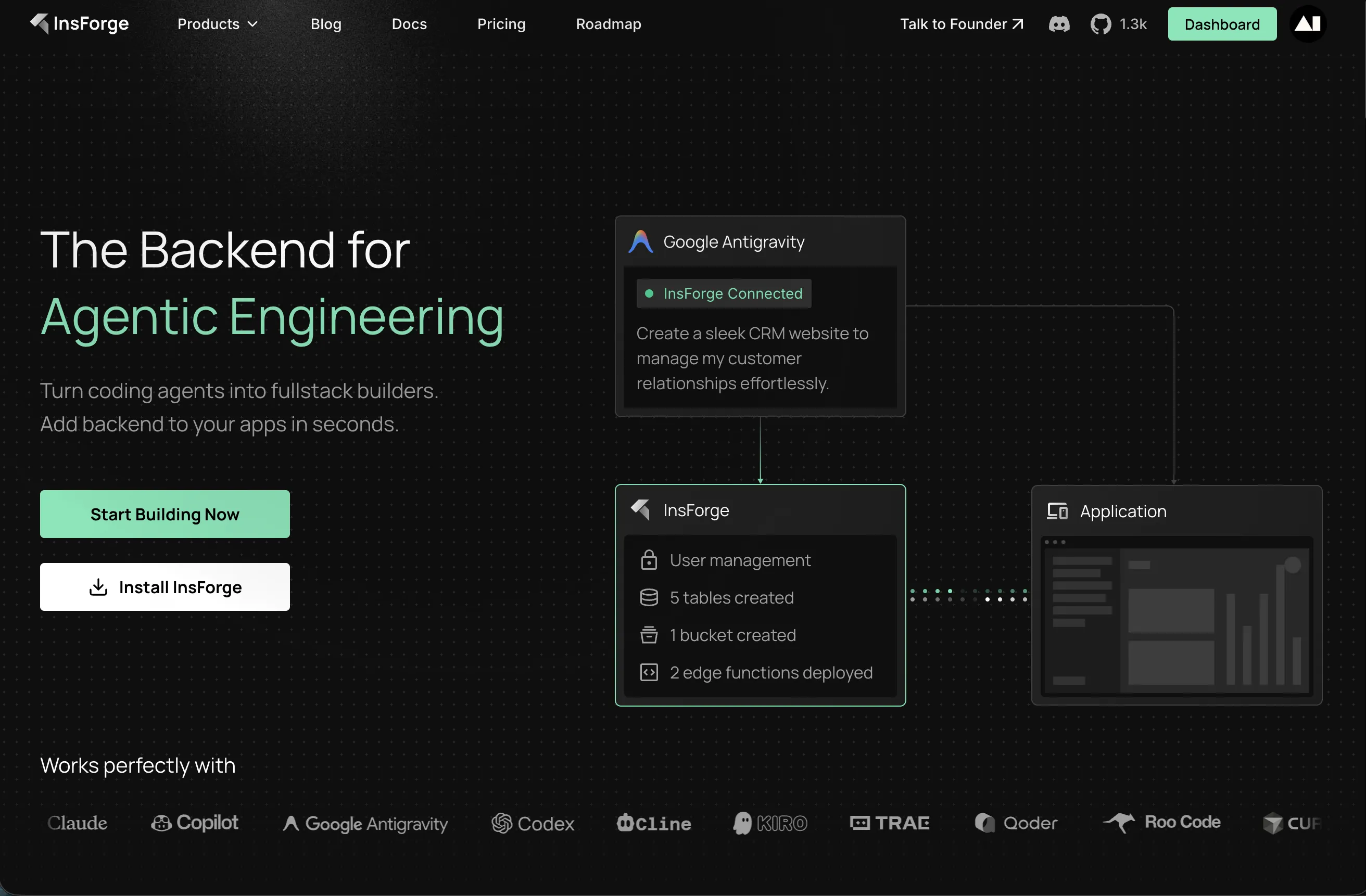
InsForge は、AIコーディングエージェント向けに特化して設計された、PostgreSQLデータベース、JWT認証、ファイルストレージ、サーバーレス関数を提供するAI最適化のBackend-as-a-Service(BaaS)プラットフォームです。Model Context Protocol(MCP)を通じて統合することで、自然言語プロンプトを使って完全なアプリケーションを構築できます。
作成するもの
このチュートリアルでは、以下の機能を持つタスク管理アプリケーションを作成します:
- ユーザー認証(サインアップ、ログイン、JWTセッション)
- データベース操作(タスクのCRUD)
- ファイルストレージ(タスクの添付ファイル)
- リアルタイム更新
前提条件
- Node.js 18+ がインストールされていること
- Qoder AI コーディングIDE
- TypeScript/JavaScript の基礎知識
- InsForge のクラウドアカウント
パート1: ローカルプロジェクトフォルダーを作成する
InsForge をセットアップする前に、プロジェクトのローカルフォルダーを作成しましょう。
プロジェクトフォルダーの作成
ターミナルを開き、新しい task-manager フォルダーを作成します:
mkdir task-manager
cd task-manager
Qoder で開く
- Qoder IDE を起動します
- File → Open Folder(またはキーボードショートカット)を選択します
- 作成した
task-managerフォルダーに移動します - 「Open」をクリックして Qoder にフォルダーを読み込みます
Qoder を開いたまま次のステップで InsForge に接続します。
パート2: InsForge プロジェクトを作成する
InsForge がアプリケーションのバックエンドインフラを提供します。
- insforge.dev にアクセスしてアカウントを作成します
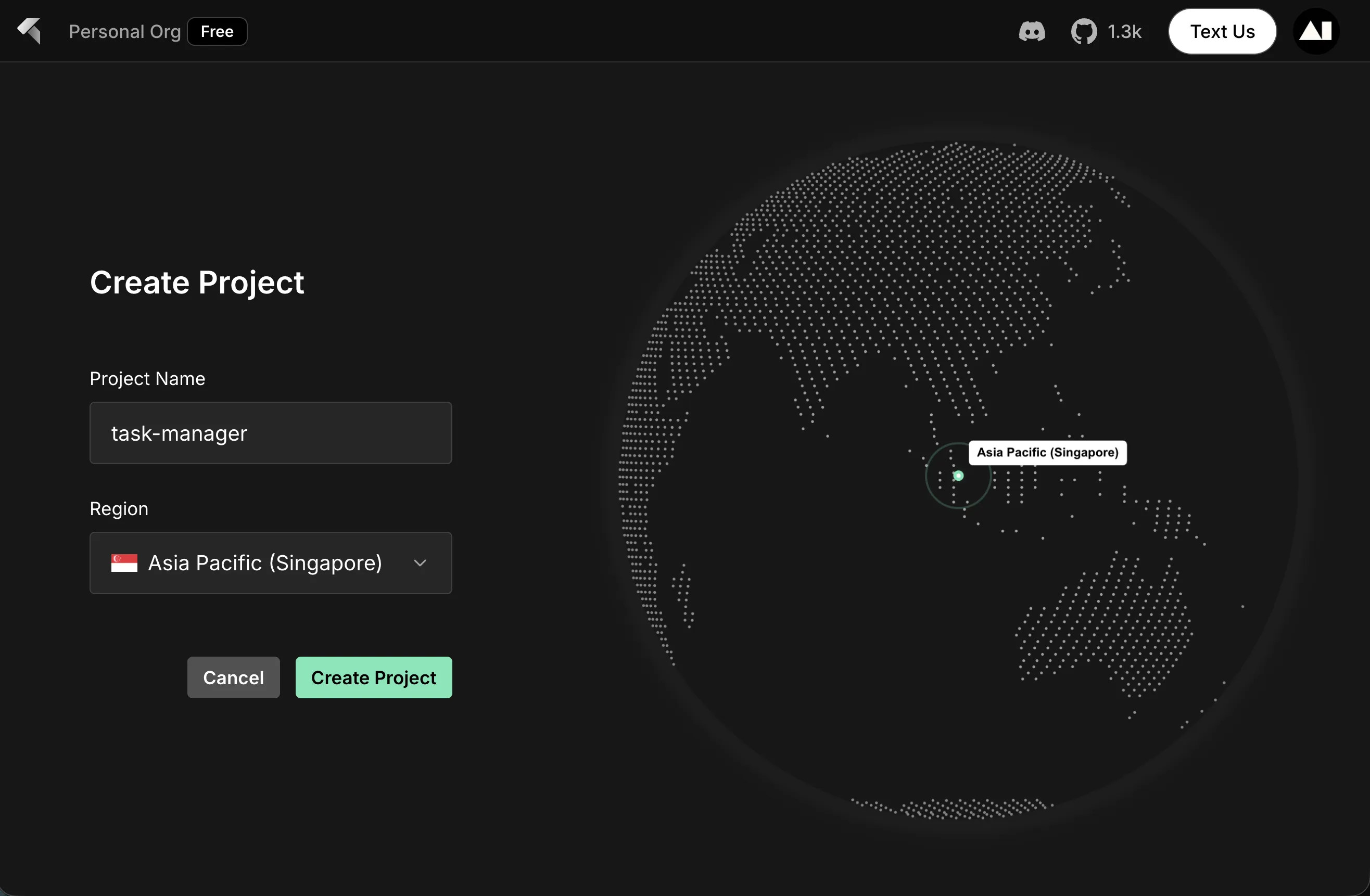
- ダッシュボードで Create Project をクリックします
- プロジェクト名として
task-managerを入力します - お好みのリージョンを選択します(例:Asia Pacific (Singapore))
- Create Project をクリックします
パート3: InsForge を Qoder に接続する
組み込み拡張機能を使って InsForge バックエンドを Qoder に接続しましょう。
ステップ1: InsForge 拡張機能をインストールする
プロジェクトを作成すると「Get Started」ページが表示されます:
- 「Step 1: Install InsForge」の下にIDEのオプションが表示されます
- Qoder の下にある Install ボタンをクリックします
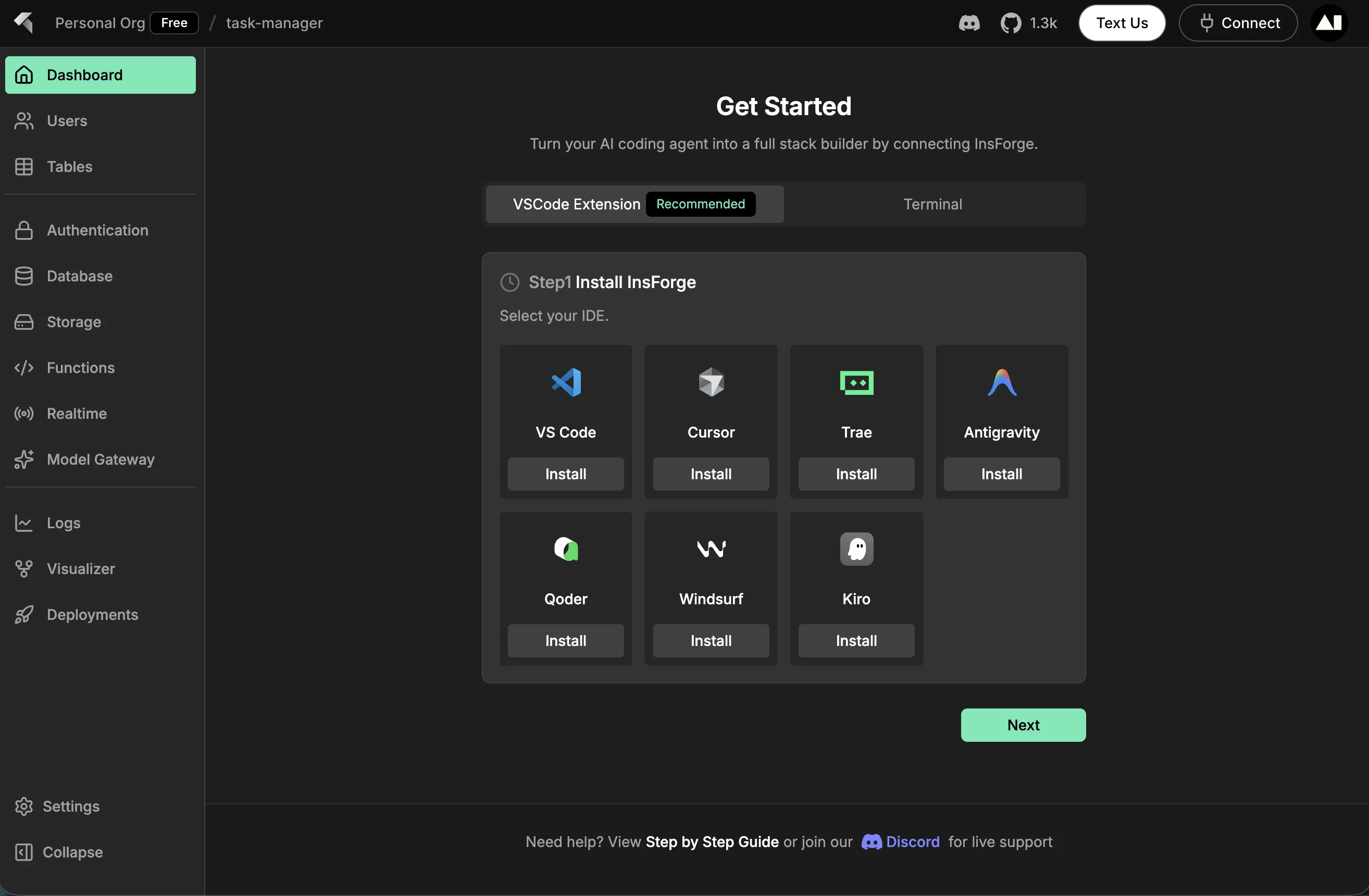
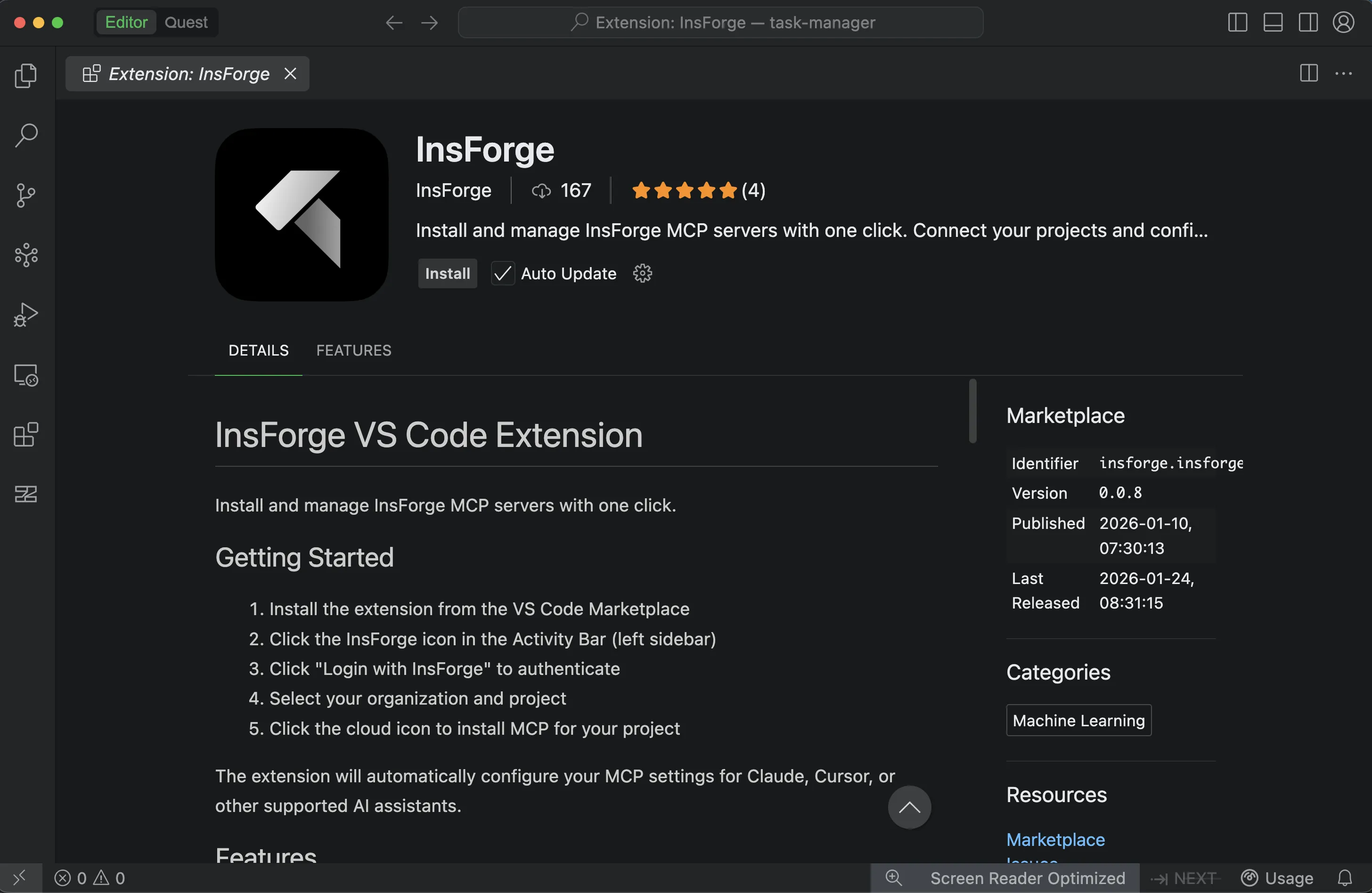
これにより、Qoder に InsForge 拡張機能をインストールするよう案内されます(以下に示すVS Code拡張機能と同様):
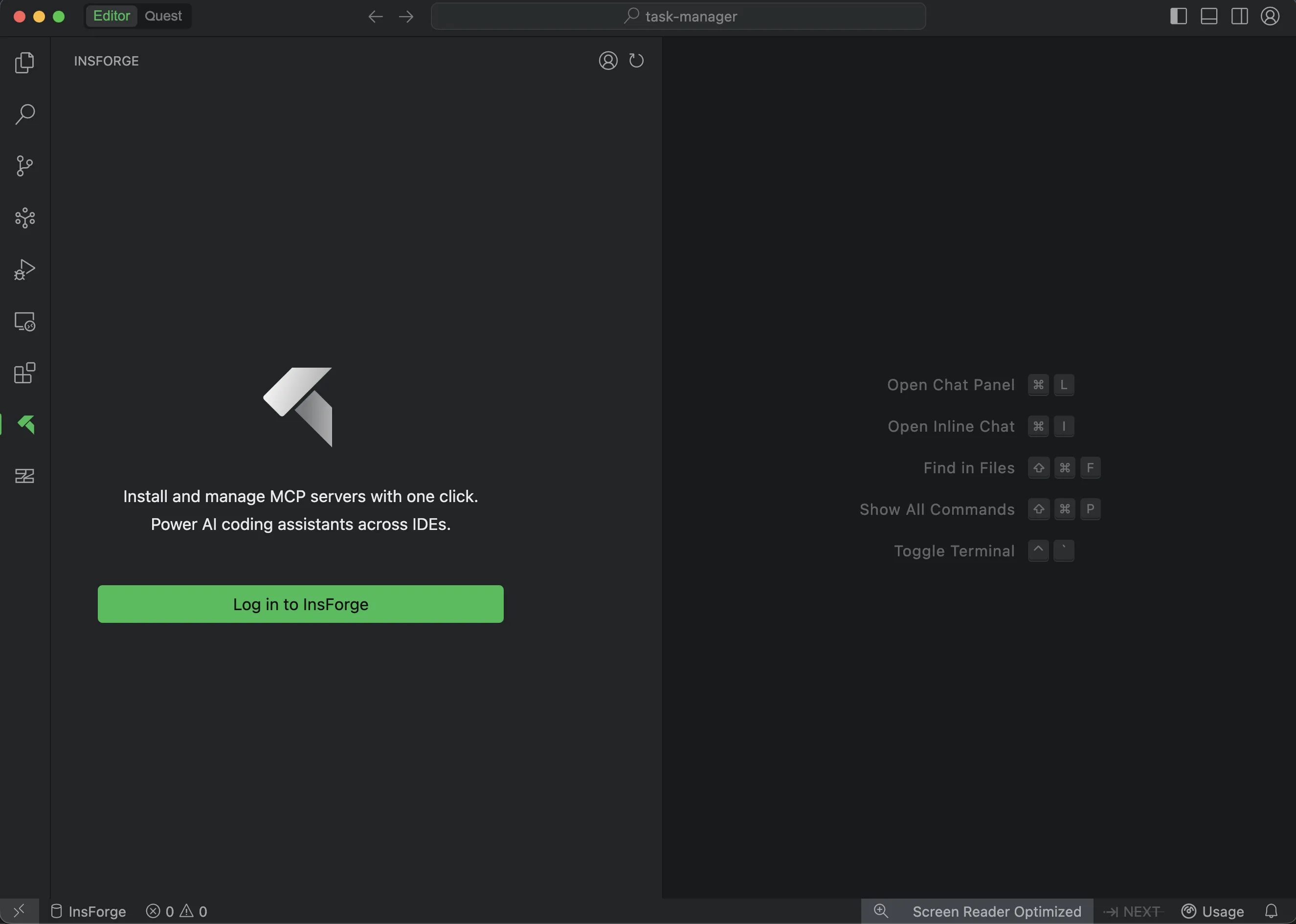
ステップ2: InsForge にログインする
- Qoder で左サイドバーにある InsForge アイコンを探します
- Log in to InsForge ボタンをクリックします
ステップ3: MCP サーバーをインストールする
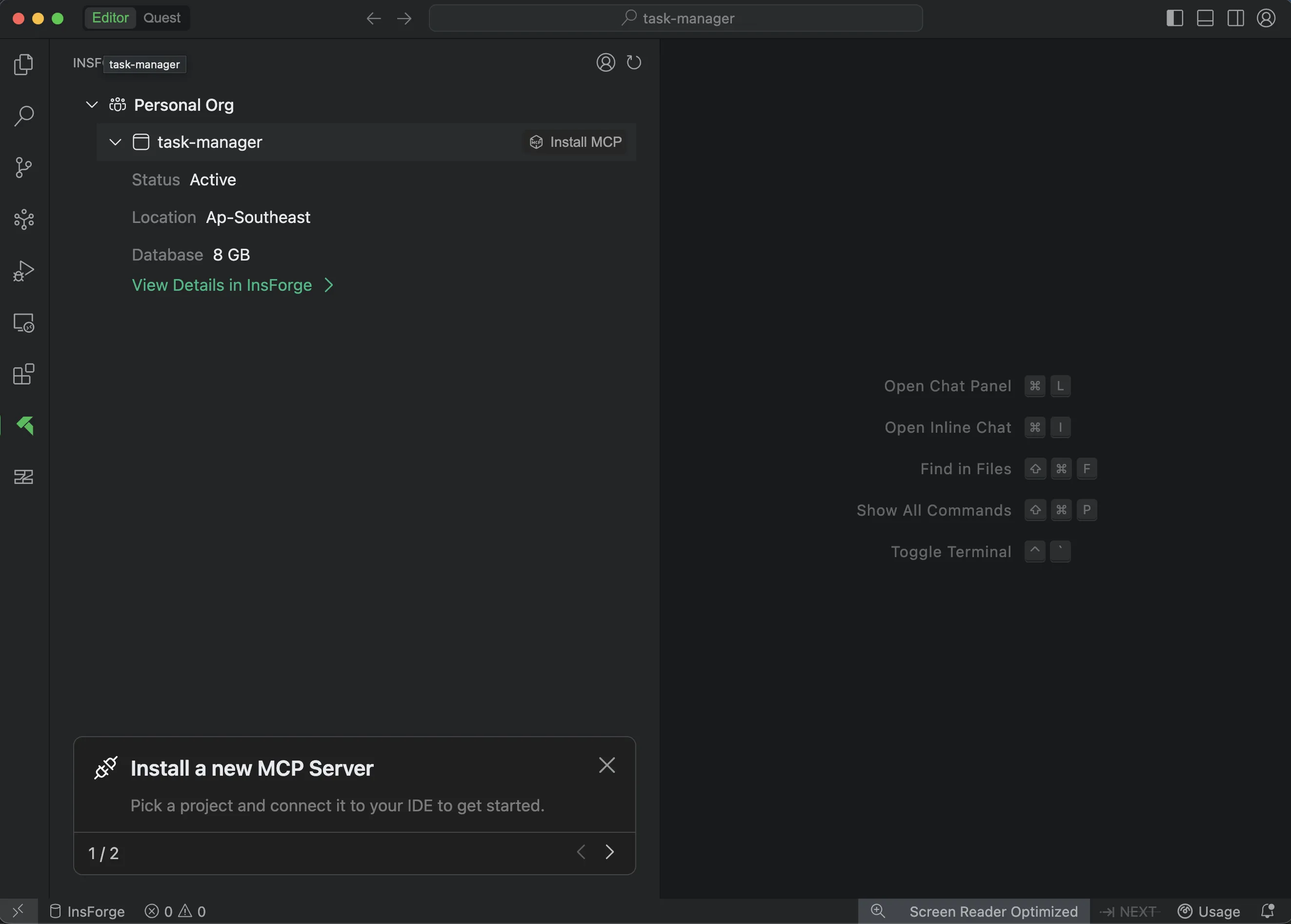
- ログイン後、組織とプロジェクトが表示されます
- 組織を展開して
task-managerプロジェクトを確認します - プロジェクトの横にある Install MCP ボタンをクリックします
ステップ4: 接続を確認する
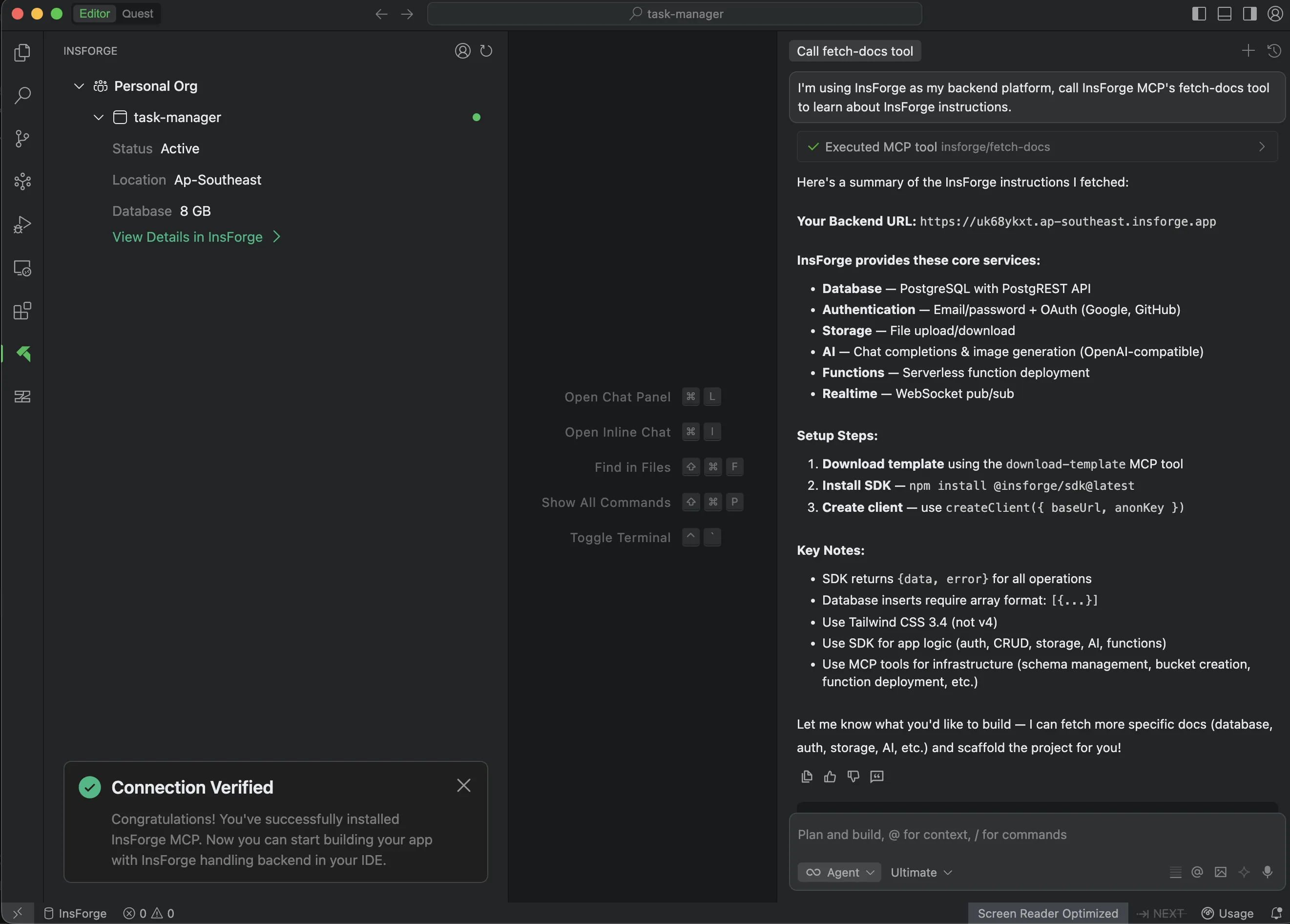
Qoder のAIアシスタントに次のように質問して接続をテストします:
I'm using InsForge as my backend platform, call InsForge MCP's fetch-docs tool to learn about InsForge instructions.これにより InsForge のドキュメントが取得されます。プロンプトが正常に実行されると、Qoder の下部に「Connection Verified」メッセージが表示され、MCPサーバーが正常にインストールされて動作していることが確認できます!
パート4: AIでアプリケーションを構築する
InsForge が Qoder に接続されたので、AIプロンプトを使ってタスク管理アプリケーション全体を構築しましょう。以下のステップを順番に実行し、各機能を実装するよう Qoder のAIアシスタントに依頼します。
ステップ1: プロジェクトを初期化する
Qoder のAIアシスタントに依頼します:
Set up a React + TypeScript project using Vite for a task manager app.
Install @insforge/sdk, react, react-dom and the usual dev dependencies.

Create a proper folder structure with src/lib/ for the InsForge client,
src/components/ for Auth, TaskList, and TaskForm components, and src/types/
for TypeScript interfaces.

Also set up the .env file with VITE_INSFORGE_BASE_URL and VITE_INSFORGE_ANON_KEY -
I'll grab those from my InsForge dashboard.
AIアシスタントがすべてのファイルと依存関係を含む完全なプロジェクト構造を作成します。
ステップ2: InsForge SDK とタイプを設定する
ステップ1の後、src/lib/insforge.ts が作成されているはずです。AIアシスタントに設定を依頼します:
Configure src/lib/insforge.ts to use InsForge SDK. Import createClient from
@insforge/sdk, pull in the baseUrl and anonKey from the environment variables,
and set up the client with autoRefreshToken and persistSession enabled. Export
the db, storage, and auth clients so I can use them throughout the app.

Also create the TypeScript types in src/types/task.ts. I need a Task interface
with all the fields like id, title, description, status (pending/in_progress/completed),
priority (low/medium/high), due_date, user_id, attachment_url, created_at, and
updated_at. Plus a User interface and some helper types like CreateTaskInput and
UpdateTaskInput.
ステップ3: データベーススキーマを作成する
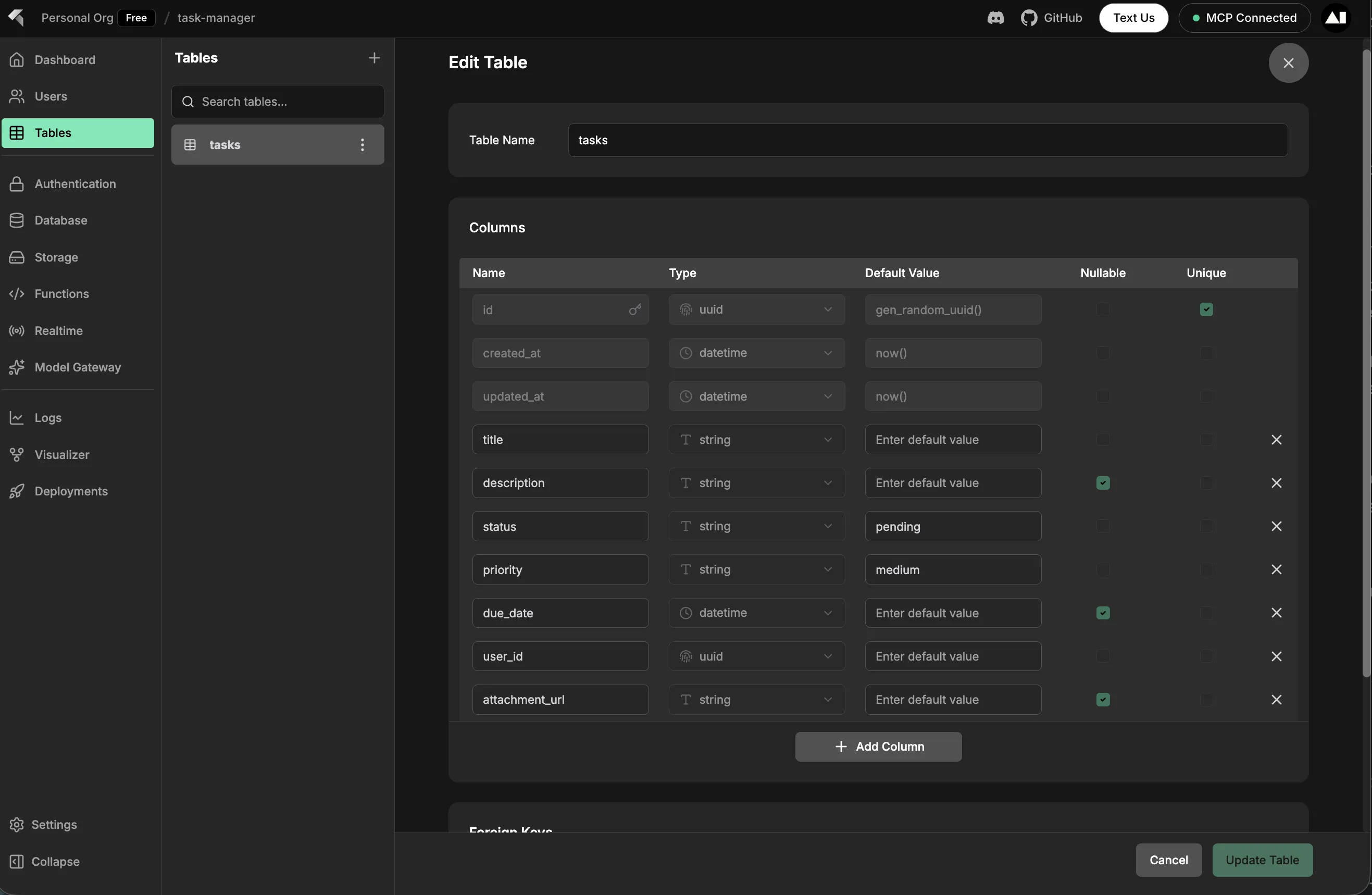
AIアシスタントに依頼します:
Use InsForge MCP tools to create a tasks table. I need columns for id (uuid
primary key), title (required text), description, status (default 'pending'),
priority (default 'medium'), due_date, user_id (foreign key to auth.users),
attachment_url, created_at, and updated_at timestamps.

Enable Row Level Security so users can only see and modify their own tasks -
set up the policies to check that auth.uid() matches the user_id for all operations.

Also create a storage bucket called 'task-attachments' for file uploads.
AIがInsForge MCPツールを使って、テーブルの作成、セキュリティポリシーの設定、ストレージバケットの作成を自動的に行います。
ステップ4: 認証UIを構築する
AIアシスタントに認証コンポーネントの作成を依頼します:
Create an Auth component in src/components/Auth.tsx. I need a form with email
and password inputs, and a mode toggle to switch between sign-in and sign-up.

Use the InsForge auth client to handle authentication - call auth.signUp() or
auth.signIn() depending on the mode. Show a loading state on the button, handle
errors with an alert, and reload the page on success to refresh the session.
ステップ5: タスク管理コンポーネントを構築する
AIアシスタントにタスク管理コンポーネントの作成を依頼します:
Create a TaskForm component in src/components/TaskForm.tsx that takes an
onTaskCreated callback. Add form fields for title, description, priority
(dropdown with low/medium/high), due date, and file attachment. When submitting,
if there's a file, upload it to the 'task-attachments' storage bucket first,
then insert the task into the database with InsForge db client. Reset the form
after creation.

Also create a TaskList component in src/components/TaskList.tsx. Fetch all tasks
on mount, ordered by created_at. Display each task with its details - title,
description, priority, status, due date, and attachment link if it exists. Add
buttons to update the status (Start, Complete) and to delete tasks. Update the
task status in the database when clicked, and show a confirmation dialog before
deleting.
ステップ6: メインアプリケーションを作成する
AIアシスタントにメインの App コンポーネントを構築するよう依頼します:
Create the main App component in src/App.tsx. Check for an existing session on
mount using auth.getSession() and listen for auth state changes. Show a loading
state initially, then conditionally render either the Auth component if there's
no session, or the task manager interface if the user is logged in.

The task manager should have a header with the title and a sign-out button, then
the TaskForm and TaskList components. Also create the main.tsx entry point to
render the App.
ステップ7: アプリケーションを実行する
AIアシスタントに開発サーバーの起動を依頼します:
Start the development server using npm run devタスクマネージャーアプリが起動します! Vite が提供するURL(通常は http://localhost:5173)をブラウザで開いてください。
アカウントを作成してアプリを使ってみる
- メールアドレスとパスワードを入力して新しいアカウントを作成します
- 認証情報でサインインします
- タスクを作成・管理できるタスクマネージャーインターフェースが表示されます
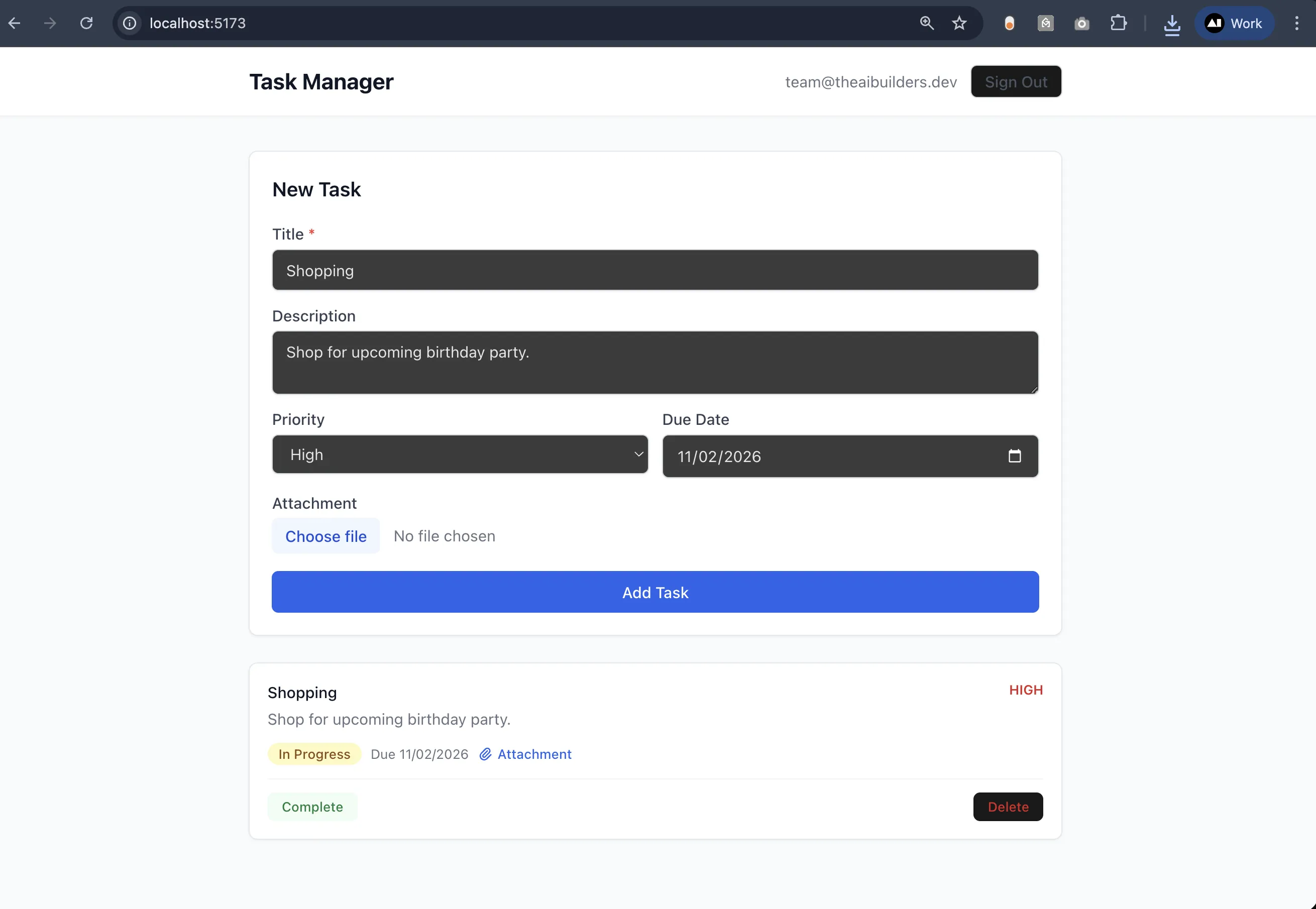
InsForge ダッシュボードで確認することで、ユーザーアカウントが正常に作成されたかどうかを確認できます。プロジェクトの Users セクションに移動すると、新しいユーザーが一覧に表示されます:
ダッシュボードでタスクを確認する
アプリでタスクを作成した後、InsForge ダッシュボードで確認できます:
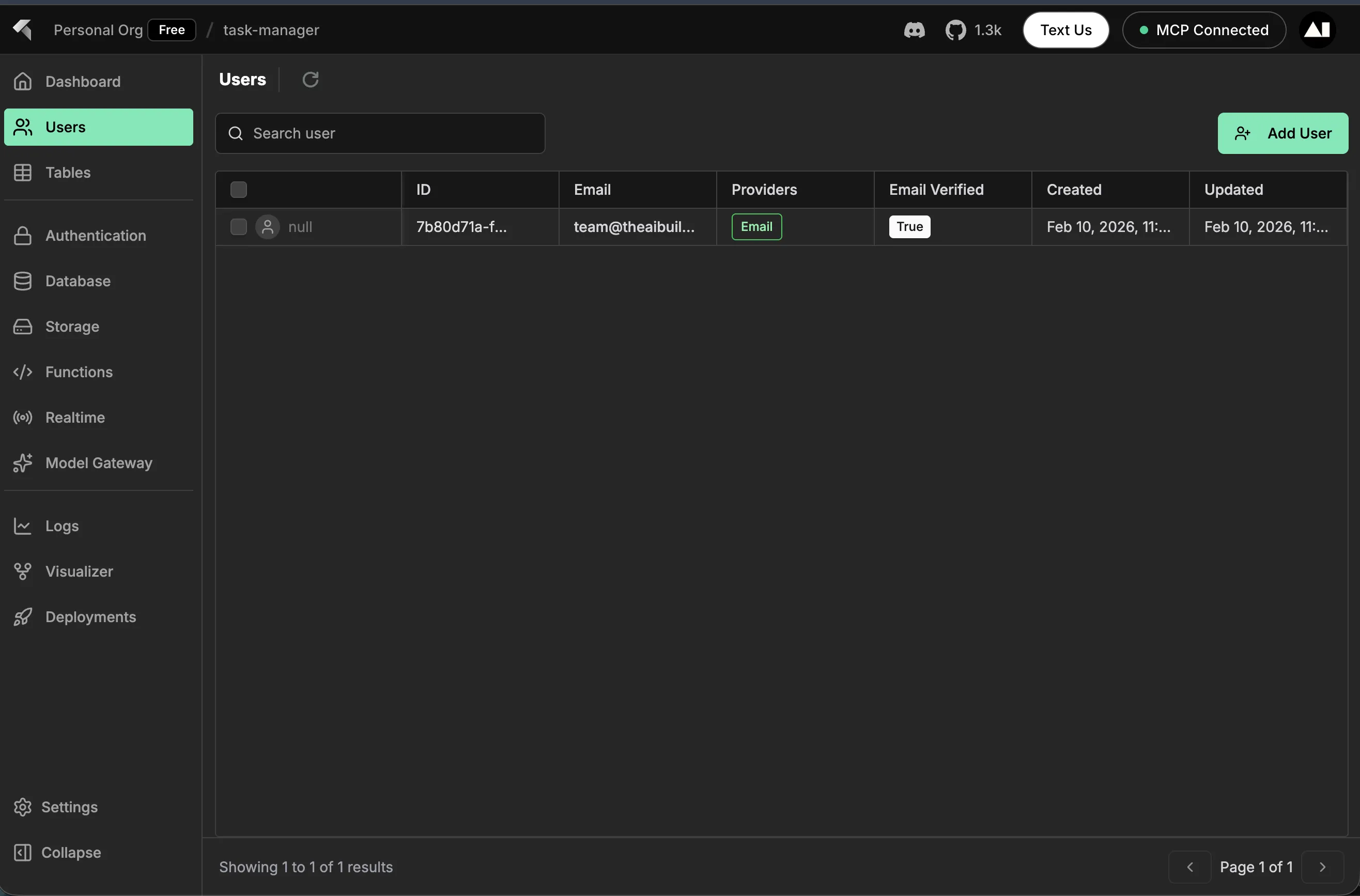
データベーステーブルビュー:InsForge ダッシュボードの Tables セクションに移動し、tasks テーブルを選択します。作成したすべてのタスクとそのデータが表示されます:
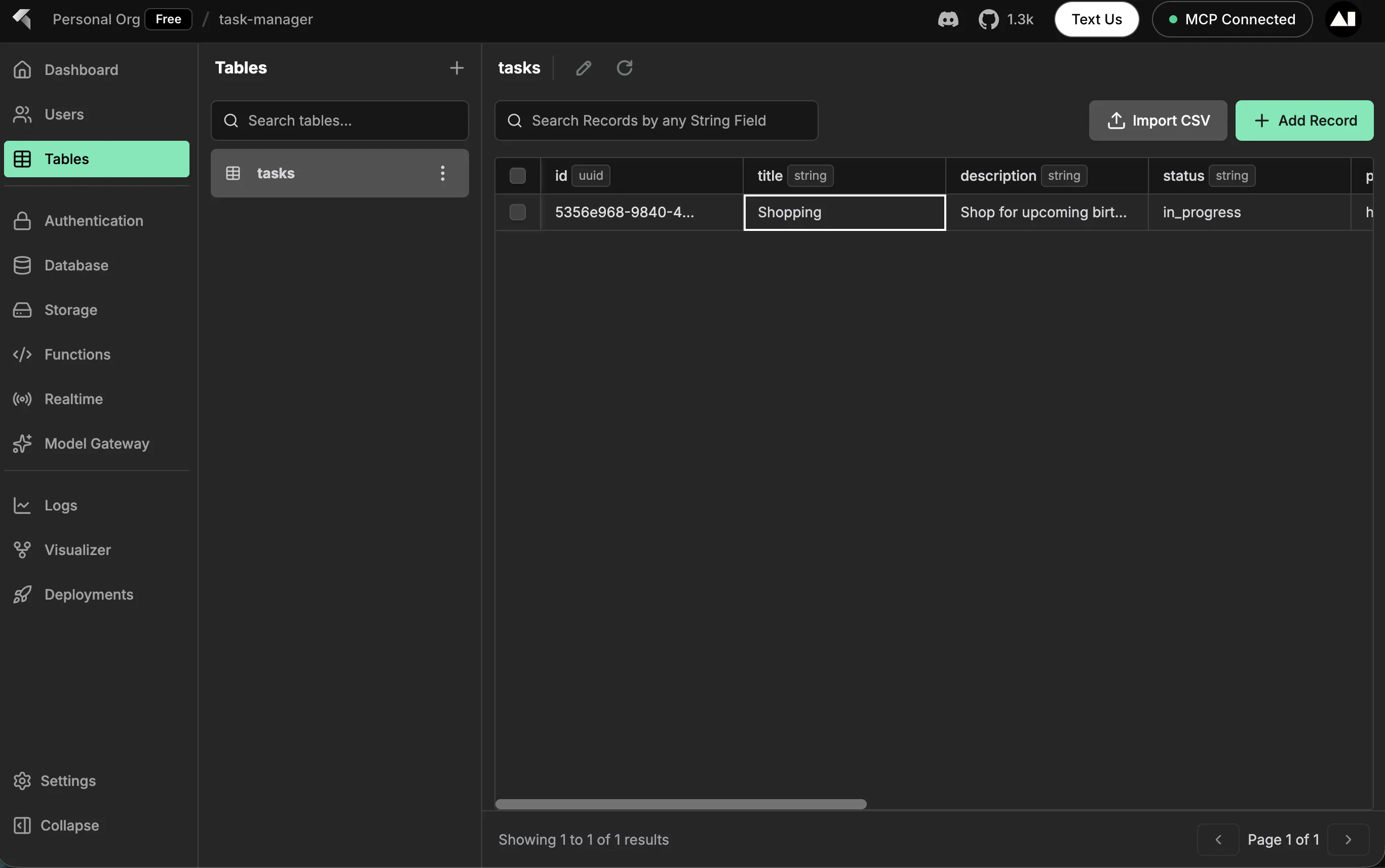 ストレージビュー:
タスクにファイルの添付ファイルをアップロードした場合、Storage セクションに移動して task-attachments バケットを開きます。アップロードしたすべてのファイルが表示されます:
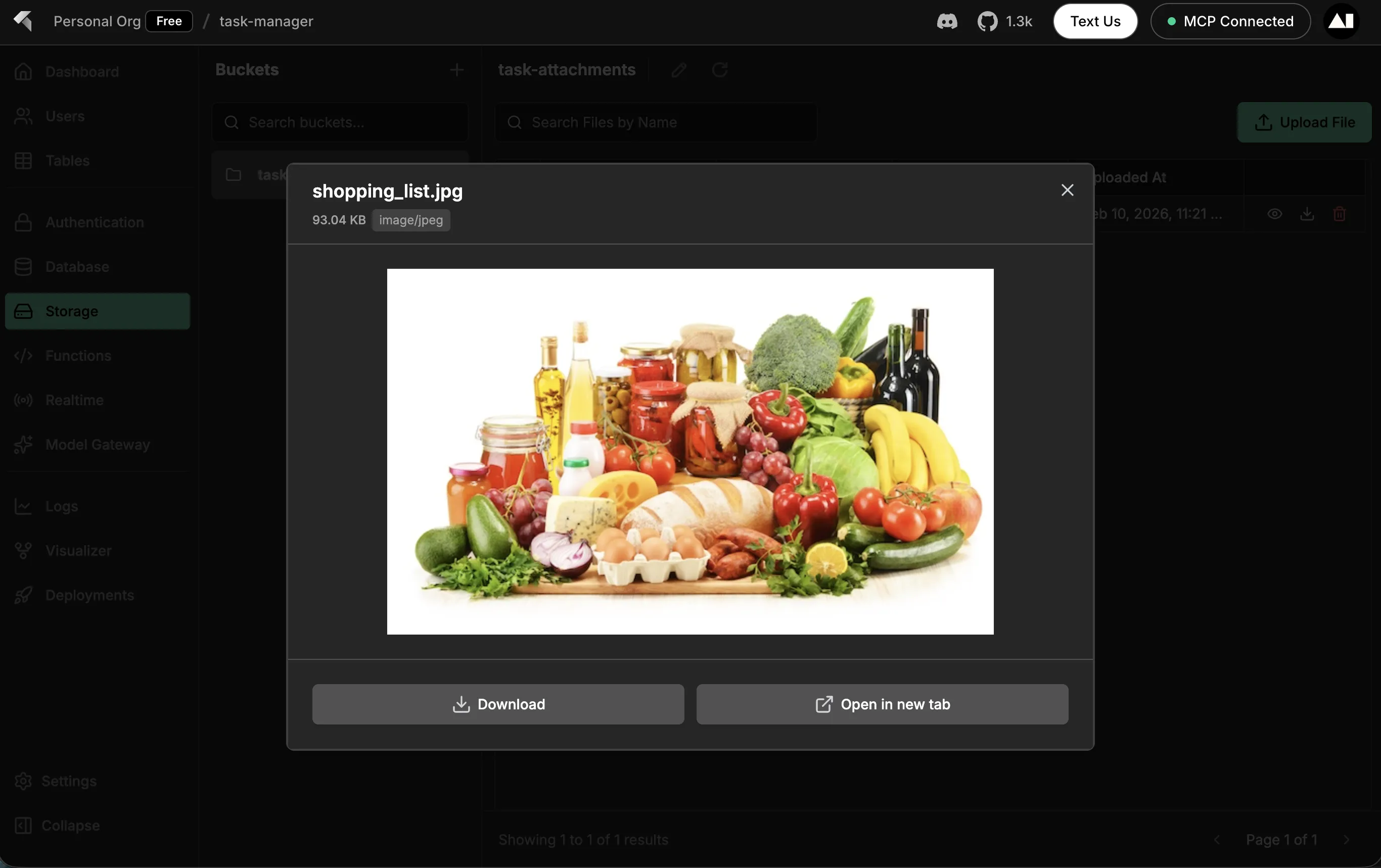
これにより、アプリケーションが InsForge バックエンドにデータを正常に保存していることが確認できます!
トラブルシューティング
MCP接続の問題
- APIキーとベースURLが正しいことを確認してください
- 設定変更後はAIコーディングアシスタントを再起動してください
@insforge/mcpパッケージがインストールされていることを確認してください
データベースエラー
- MCPまたはSQLを通じてテーブルが作成されていることを確認してください
- Row Level Security ポリシーがアクセスを許可していることを確認してください
- データベース操作の前にユーザーが認証されていることを確認してください
ファイルアップロードの失敗
- InsForge ダッシュボードまたはMCPを通じてストレージバケットを作成してください
- ファイルサイズが制限以内であることを確認してください(デフォルト50MB)
- MIMEタイプが許可されていることを確認してください
次のステップ
- InsForge ドキュメントを参照する
- Discordコミュニティに参加する
- サンプルプロジェクトを確認する
- APIリファレンスを確認する
まとめ
- InsForge は PostgreSQL、認証、ストレージを含む完全なバックエンドを提供します
- MCP統合により、AIアシスタントがバックエンドインフラを管理できます
- SDKは型安全なデータベースおよびストレージ操作を提供します
- Row Level Security はユーザー間のデータ分離を保証します
- リアルタイムサブスクリプションによってUIが同期された状態を保ちます
InsForge と MCP を使えば、自然言語プロンプトと最小限のコードで本番環境に対応したフルスタックアプリケーションを構築できます。