MCP Apps: AIエージェント向けインタラクティブUIの構築

このチュートリアルでは、AIエージェントがチャットインターフェースに直接表示できるリッチでインタラクティブなユーザーインターフェースの構築方法を学びます。MCP Appsプロトコルを探索し、シンプルなグリーティングカードからリアルタイムのBitcoinダッシュボードまで、2つの段階的に高度な例を構築します。
> 📝 注:このチュートリアルはMCP Apps Proposal (SEP-1865)に基づいています。
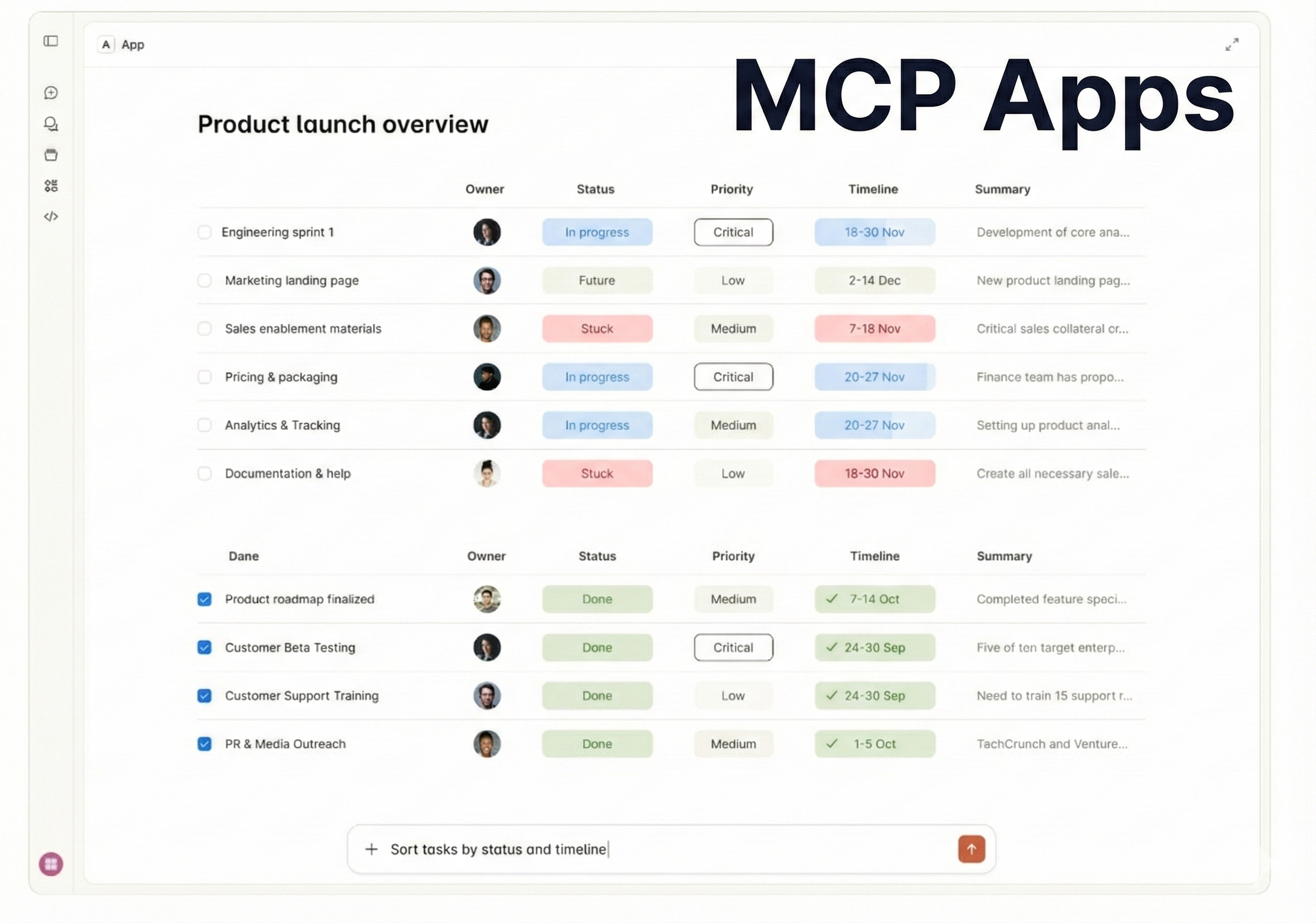
MCP Appsとは?
MCP Appsは、Model Context Protocol (MCP)を拡張し、サーバーがテキストやJSONだけでなく、完全なユーザーインターフェースを返せるようにします。
AIアシスタントに「Bitcoinの価格は?」と聞く場面を想像してみてください。従来のMCPサーバーは「$45,234」のようなプレーンテキストレスポンスを返すかもしれません。しかしMCP Appsでは、サーバーは美しくデザインされたダッシュボードを返すことができます:
- リアルタイムの価格チャート
- 24時間の高値/安値インジケーター
- 取引量統計
- 時価総額情報
すべてがAIクライアント(Goose、Claude Desktop、その他のMCP互換アプリケーション)に直接レンダリングされます。
はじめに:プロジェクトセットアップ
MCP Appsの構築に入る前に、プロジェクトをゼロからセットアップしましょう。
プロジェクトディレクトリの作成
# プロジェクトディレクトリを作成して移動
mkdir mcp-app-demo
cd mcp-app-demo
uvでのプロジェクト初期化
uvを使用します。これは高速なPythonパッケージマネージャーで、依存関係の管理に使用します。# 新しいPythonプロジェクトを初期化 uv init # 必要な依存関係を追加 uv add mcp-ui-server fastapi fastmcp httpx
以下がインストールされます:
mcp-ui-server- UIリソース作成用ヘルパーライブラリfastapi- HTML配信用ウェブフレームワークfastmcp- MCPサーバー構築用FastMCPフレームワークhttpx- APIリクエスト用HTTPクライアント
プロジェクトの準備ができました!ディレクトリにpyproject.tomlファイルとuv.lockファイルが表示されるはずです。
例1:ウェルカムカード(インラインHTML)
最もシンプルなMCP Appsから始めましょう。グリーティングカードです。この例では、Python内にインラインHTMLを直接埋め込む基本的なコンセプトを示します。
主要コンセプト
- HTTPストリームトランスポート:サーバーをstdioではなくHTTP(ポート8031)で実行し、テストとデバッグを容易にします
- rawHtmlモード:HTMLコードがPython文字列に直接埋め込まれます
- FastMCP:MCPサーバー開発を簡素化するPythonフレームワーク
完全なコード
demo-app-1.pyというファイルを作成します:
from mcp.server.fastmcp import FastMCP
from mcp_ui_server import create_ui_resource
from mcp_ui_server.core import UIResource


# Initialize the server
mcp = FastMCP("demo-simple", port=8031)


@mcp.tool()
def greet() -> list[UIResource]:
    """A simple greeting tool that returns a UI resource."""
    ui_resource = create_ui_resource(
        {
            "uri": "ui://greeting/simple",
            "content": {
                "type": "rawHtml",
                "htmlString": """
                <div style="padding: 20px; text-align: center; font-family: Arial, sans-serif;">
                    <h1 style="color: #2563eb;">Hello from Python MCP Server!</h1>
                    <p>This UI resource was generated server-side using mcp-ui-server.</p>
                </div>
            """,
            },
            "encoding": "text",
        }
    )
    return [ui_resource]


if __name__ == "__main__":
    mcp.run(transport="streamable-http")
コードの解説
主要なコンポーネントを分解して説明します:
1. 依存関係のインポートfrom mcp.server.fastmcp import FastMCP from mcp_ui_server import create_ui_resource from mcp_ui_server.core import UIResource
FastMCP:MCPサーバー構築用のメインフレームワークcreate_ui_resource:適切なメタデータでUIリソースを作成するヘルパー関数UIResource:戻り値の型ヒント
mcp = FastMCP("demo-simple", port=8031)
- 最初の引数:サーバー名(一意である必要があります)
port=8031:サーバーのHTTPポート
@mcp.tool()
def greet() -> list[UIResource]:
    """A simple greeting tool that returns a UI resource."""
@mcp.tool()デコレータはこの関数をMCPツールとして公開しますUIResourceオブジェクトのリストを返します- ドックストリングがAIエージェント向けのツール説明になります
ui_resource = create_ui_resource({
    "uri": "ui://greeting/simple",
    "content": {
        "type": "rawHtml",
        "htmlString": "..."
    },
    "encoding": "text"
})
uri:このUIリソースの一意識別子type: "rawHtml":クライアントにインラインHTMLをレンダリングするよう指示htmlString:実際のHTMLコンテンツencoding: "text":テキストエンコーディング形式
mcp.run(transport="streamable-http")
streamable-http:HTTPベースのトランスポート(stdioとの対比)- ウェブリクエスト経由でサーバーにアクセス可能にします
インラインHTMLを使用する場面
rawHtmlモードは以下に適しています:
- クイックプロトタイプと概念実証
- シンプルな静的コンテンツ(お知らせ、確認)
- 外部アセットが不要なUI
- 学習と実験
複雑なスタイリングとJavaScriptライブラリを使用する本番アプリケーションでは、例2で示すiframeモードを使用します。
Goose Desktopを使用したMCPサーバーの呼び出し
動作するMCPサーバーができたので、ネイティブのMCP-UIサポートを持つAIエージェントであるGoose Desktopに接続しましょう。Goose Desktopはgreetツールを呼び出し、UIをインターフェースに直接レンダリングできます。
Goose Desktopとは?
Goose Desktopは、デスクトップアプリケーションインターフェースを持つAI搭載の開発者アシスタントです。テキストのみのAIアシスタントとは異なり、Goose DesktopはMCP-UIコンポーネントのレンダリングをネイティブにサポートしており、MCP Appsのテストに最適です。ステップ1:Goose Desktopのインストール
公式ウェブサイトからGoose Desktopをダウンロードしてインストールします。ステップ2:MCPサーバーの起動
1つのターミナルで、最初の例を起動します:
# サーバーを実行(uvが依存関係を自動的に処理)
uv run demo-app-1.py
サーバーがポート8031で実行中であることを示す出力が表示されるはずです。
ステップ3:Goose Desktopの設定
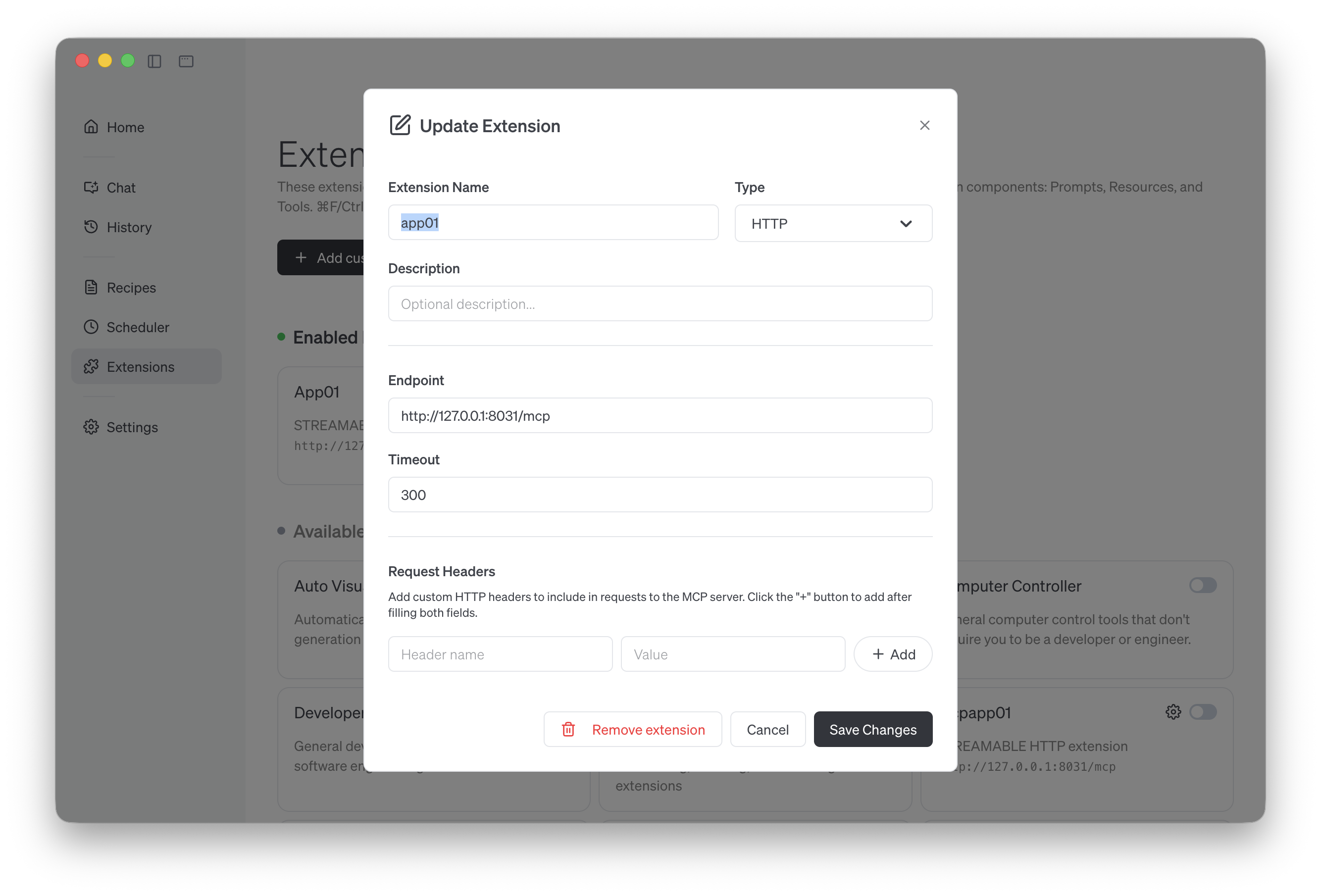
Goose DesktopのExtensionsセクションを使用してMCPサーバーに接続できます:
- Goose Desktopを開く
- Extensionsに移動
- 以下の設定で新しいMCPサーバーを追加:
- Name:
app01(または任意の名前) - Type:HTTP
- Endpoint:
http://127.0.0.1:8031/mcp
ステップ4:Goose Desktopでテスト
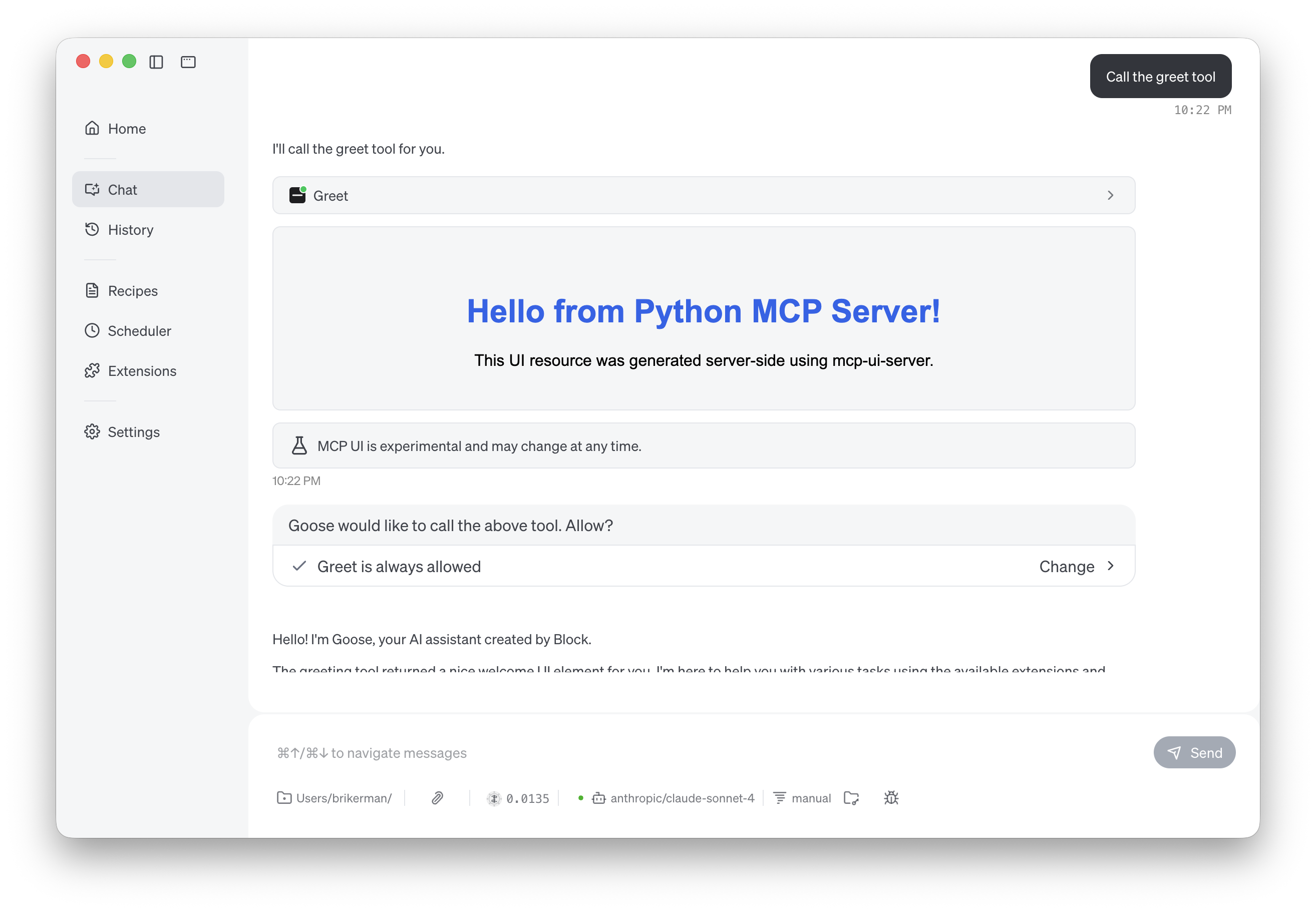
Goose Desktopを開き、新しいセッションを開始します。
Goose Desktopにツールの呼び出しを依頼します:Call the greet tool
トラブルシューティング
Goose Desktopがサーバーに接続できない場合:
- サーバーが実行中か確認:ブラウザで
http://localhost:8031にアクセス - ログを確認:サーバー出力のエラーメッセージを確認
- Goose Desktopを再起動:Extensionsを変更した後、Goose Desktopを再起動
例2:Bitcoinダッシュボード(リッチUI + iframeモード)
次に、より高度なものを構築しましょう。チャートと統計を備えたリアルタイムBitcoin価格ダッシュボードです。この例では、MCP Appsのフルパワーを紹介します:
- Tailwind CSS - モダンなスタイリング
- Chart.js - インタラクティブなビジュアライゼーション
- CoinGecko API - リアルタイムの暗号通貨データ
- iframeレンダリング - 適切なJavaScript実行
なぜiframeモードなのか?
例1のインラインHTMLとは異なり、iframeモードにはいくつかの利点があります:
- 関心の分離:HTMLがPython文字列ではなく別ファイルに存在
- IDEサポート:HTML/CSS/JSの完全なシンタックスハイライトとオートコンプリート
- 実際のブラウザ環境:Chart.jsのようなJavaScriptライブラリが正常に動作
- CDNの問題なし:外部スクリプトが正常にロード・実行可能
アーキテクチャ概要
例2は、FastMCPとFastAPIが一緒に動作するデュアルサーバーアーキテクチャを使用します:
┌─────────────────────────────────────┐
│  Single Python Process (port 8032)  │
│                                     │
│  ┌──────────────────────────────┐   │
│  │ FastAPI Application          │   │
│  │                              │   │
│  │ ├─ /mcp (FastMCP mounted)    │   │
│  │ │  └─ show_bitcoin_price()   │   │
│  │ │     Returns: iframe URL    │   │
│  │ │                            │   │
│  │ └─ /ui/bitcoin               │   │
│  │    Renders: HTML + data      │   │
│  └──────────────────────────────┘   │
└─────────────────────────────────────┘
AIエージェントがshow_bitcoin_price()を呼び出すと、/ui/bitcoinを指すiframe URLを受け取り、リアルタイムデータでダッシュボードをレンダリングします。
完全なサーバーコード
demo-app-2.pyを作成します:
from fastmcp import FastMCP
from mcp_ui_server import create_ui_resource
from mcp_ui_server.core import UIResource
from fastapi import FastAPI
from fastapi.responses import HTMLResponse
from string import Template
import random
import os
import uvicorn
import httpx
from datetime import datetime

# Initialize FastMCP
mcp = FastMCP("demo-bitcoin")

def load_html_template() -> str:
    """Load the external HTML template file."""
    current_dir = os.path.dirname(os.path.abspath(__file__))
    file_path = os.path.join(current_dir, "bitcoin-ui.html")
    with open(file_path, "r", encoding="utf-8") as f:
        return f.read()

async def fetch_bitcoin_data(currency: str = "USD"):
    """Fetch real Bitcoin data from CoinGecko API (free, no API key needed)."""
    currency_lower = currency.lower()

    try:
        async with httpx.AsyncClient(timeout=10.0) as client:
            # Fetch current price and market data
            response = await client.get(
                "https://api.coingecko.com/api/v3/simple/price",
                params={
                    "ids": "bitcoin",
                    "vs_currencies": currency_lower,
                    "include_24hr_change": "true",
                    "include_24hr_vol": "true",
                    "include_market_cap": "true",
                    "include_24hr_high_low": "true"
                }
            )
            response.raise_for_status()
            data = response.json()["bitcoin"]

            current_price = data.get(currency_lower, 0)
            change_24h = data.get(f"{currency_lower}_24h_change", 0)
            volume_24h = data.get(f"{currency_lower}_24h_vol", 0)
            market_cap = data.get(f"{currency_lower}_market_cap", 0)
            high_24h = data.get(f"{currency_lower}_24h_high", current_price)
            low_24h = data.get(f"{currency_lower}_24h_low", current_price)

            return {
                "current_price": current_price,
                "change_24h": change_24h,
                "high_24h": high_24h,
                "low_24h": low_24h,
                "volume_24h": volume_24h,
                "market_cap": market_cap
            }
    except Exception as e:
        print(f"Error fetching Bitcoin data: {e}")
        # Fallback to mock data if API fails
        return {
            "current_price": 45234,
            "change_24h": 3.2,
            "high_24h": 46100,
            "low_24h": 43800,
            "volume_24h": 28500000000,
            "market_cap": 885000000000
        }

def generate_price_data(current_price: float):
    """Generate realistic Bitcoin price data for the chart based on current price."""
    prices = []
    base_price = current_price * 0.98  # Start slightly lower
    for i in range(24):
        variation_percent = random.uniform(-0.02, 0.02)  # ±2% variation
        base_price *= (1 + variation_percent)
        prices.append(round(base_price, 2))
    return prices

# FastMCP tool
@mcp.tool()
def show_bitcoin_price(currency: str = "USD") -> list[UIResource]:
    """Display Bitcoin price with live chart and statistics.

    Args:
        currency: Currency to display price in (default: USD)
    """
    # Point to the FastAPI endpoint in the same process
    iframe_url = f"http://localhost:8032/ui/bitcoin?currency={currency}"

    ui_resource = create_ui_resource({
        "uri": f"ui://bitcoin/{currency.lower()}",
        "content": {
            "type": "externalUrl",
            "iframeUrl": iframe_url,
        },
        "encoding": "text",
    })
    return [ui_resource]

# Create MCP HTTP app
mcp_app = mcp.http_app()

# Create main FastAPI application with lifespan management
app = FastAPI(title="Bitcoin Dashboard Server", lifespan=mcp_app.lifespan)

# Mount MCP server
app.mount("/mcp", mcp_app)

# FastAPI route: Render HTML
@app.get("/ui/bitcoin", response_class=HTMLResponse)
async def render_bitcoin_ui(currency: str = "USD"):
    """Render Bitcoin price dashboard with real live data from CoinGecko API."""
    # Fetch real Bitcoin data
    data = await fetch_bitcoin_data(currency)

    current_price = data["current_price"]
    change_24h = data["change_24h"]
    high_24h = data["high_24h"]
    low_24h = data["low_24h"]
    volume_24h = data["volume_24h"]
    market_cap = data["market_cap"]

    # Format numbers
    def format_large_number(num):
        """Format large numbers with B/M suffix."""
        if num >= 1_000_000_000:
            return f"{num / 1_000_000_000:.1f}B"
        elif num >= 1_000_000:
            return f"{num / 1_000_000:.1f}M"
        else:
            return f"{num:,.0f}"

    # Generate chart data based on current price
    price_history = generate_price_data(current_price)
    price_data_json = ",".join(map(str, price_history))

    # Currency symbol mapping
    currency_symbols = {
        "USD": "$", "EUR": "€", "GBP": "£", "JPY": "¥",
        "CNY": "¥", "KRW": "₩", "AUD": "A$", "CAD": "C$"
    }
    symbol = currency_symbols.get(currency.upper(), "$")

    # Load template and substitute values
    raw_html = load_html_template()
    template = Template(raw_html)
    rendered_html = template.safe_substitute(
        currency=currency.upper(),
        current_price=f"{symbol}{current_price:,.2f}",
        change_24h=f"+{change_24h:.2f}%" if change_24h > 0 else f"{change_24h:.2f}%",
        change_bg_color="bg-emerald-100" if change_24h > 0 else "bg-red-100",
        change_text_color="text-emerald-700" if change_24h > 0 else "text-red-700",
        high_24h=f"{symbol}{high_24h:,.2f}",
        low_24h=f"{symbol}{low_24h:,.2f}",
        volume=f"{symbol}{format_large_number(volume_24h)}",
        market_cap=f"{symbol}{format_large_number(market_cap)}",
        price_data=price_data_json
    )

    return HTMLResponse(content=rendered_html)

if __name__ == "__main__":
    print("🚀 Starting Bitcoin Dashboard Server")
    print("📊 MCP Endpoint: http://localhost:8032/mcp")
    print("🌐 Web UI: http://localhost:8032/ui/bitcoin")
    print("💡 Try: http://localhost:8032/ui/bitcoin?currency=EUR")
    print("📈 Data Source: CoinGecko API (real-time, free)")

    uvicorn.run(app, host="0.0.0.0", port=8032)
サーバーコードの解説
1. リアルBitcoinデータの取得async def fetch_bitcoin_data(currency: str = "USD"): """Fetch real Bitcoin data from CoinGecko API"""
無料のCoinGecko APIを使用して以下を取得します:
- 任意の通貨での現在価格(USD、EUR、GBPなど)
- 24時間の価格変動率
- 24時間の高値と安値
- 取引量と時価総額
この関数には、APIが利用できない場合のモックデータへのフォールバック付きエラーハンドリングが含まれています。
2. チャートデータの生成def generate_price_data(current_price: float): """Generate realistic Bitcoin price data for the chart""" prices = [] base_price = current_price * 0.98 for i in range(24): variation_percent = random.uniform(-0.02, 0.02) base_price *= (1 + variation_percent) prices.append(round(base_price, 2)) return prices
これは±2%のリアルな変動を持つ24のデータポイントを時間ごとチャート用に作成します。
3. MCPツールがiframe URLを返す@mcp.tool() def show_bitcoin_price(currency: str = "USD") -> list[UIResource]: iframe_url = f"http://localhost:8033/ui/bitcoin?currency={currency}" ui_resource = create_ui_resource({ "content": { "type": "externalUrl", "iframeUrl": iframe_url, } }) return [ui_resource]
"rawHtml"の代わりにtype: "externalUrl"であることに注意してください。これはクライアントにiframe内でURLをロードするよう指示します。
4. 統合アーキテクチャ
# Create MCP HTTP app
mcp_app = mcp.http_app()

# Create FastAPI with shared lifespan
app = FastAPI(lifespan=mcp_app.lifespan)

# Mount MCP server at /mcp
app.mount("/mcp", mcp_app)
これが1つのプロセスで両方のサーバーを実行するための鍵です:
mcp.http_app()はFastMCPをASGIアプリケーションに変換lifespan=mcp_app.lifespanは適切な起動/シャットダウンを保証app.mount("/mcp", mcp_app)はMCPを/mcpパスで利用可能にする
@app.get("/ui/bitcoin", response_class=HTMLResponse)
async def render_bitcoin_ui(currency: str = "USD"):
    # Fetch data, format numbers, load template
    template = Template(raw_html)
    rendered_html = template.safe_substitute(
        current_price=f"{symbol}{current_price:,.2f}",
        price_data=price_data_json,
        # ... other variables
    )
    return HTMLResponse(content=rendered_html)
このエンドポイントは:
- ライブBitcoinデータを取得
- 表示用に数字をフォーマット
- チャートデータを生成
- HTMLテンプレートをロード
- Pythonの
Templateクラスを使用してデータを注入 - レンダリングされたHTMLを返す
完全なUIコード
同じディレクトリにbitcoin-ui.htmlというファイルを作成します:
<!DOCTYPE html>
<html lang="en">
<head>
    <meta charset="UTF-8">
    <meta name="viewport" content="width=device-width, initial-scale=1.0">
    <title>Bitcoin Dashboard</title>
    <script src="https://cdn.tailwindcss.com"></script>
    <script src="https://cdn.jsdelivr.net/npm/chart.js"></script>
</head>
<body class="bg-gradient-to-br from-slate-900 via-purple-900 to-slate-900 p-3">
    <div class="bg-white/95 backdrop-blur-sm rounded-xl shadow-2xl p-3 max-w-7xl mx-auto">
        <!-- Header Row -->
        <div class="flex items-center justify-between mb-2.5">
            <div class="flex items-center gap-2">
                <div class="w-8 h-8 bg-gradient-to-br from-orange-400 to-orange-600 rounded-full flex items-center justify-center text-white font-bold text-sm shadow-lg">
                    ₿
                </div>
                <div>
                    <h1 class="text-sm font-bold text-gray-900 leading-tight">Bitcoin</h1>
                    <p class="text-[10px] text-gray-500">BTC/$currency</p>
                </div>
            </div>
            <div class="text-right">
                <div class="text-2xl font-black text-gray-900 leading-tight">$current_price</div>
                <div class="inline-block mt-0.5 px-1.5 py-0.5 rounded text-[10px] font-semibold $change_bg_color $change_text_color">
                    $change_24h
                </div>
            </div>
        </div>

        <!-- Main Content Grid -->
        <div class="grid grid-cols-3 gap-2.5">
            <!-- Chart -->
            <div class="col-span-2 bg-gradient-to-br from-purple-50 to-blue-50 rounded-lg p-2.5 h-24">
                <canvas id="priceChart"></canvas>
            </div>

            <!-- Stats Grid -->
            <div class="grid grid-cols-2 gap-1.5">
                <div class="bg-gradient-to-br from-blue-50 to-cyan-50 rounded p-2">
                    <div class="text-[9px] text-gray-500 uppercase font-medium mb-0.5">High</div>
                    <div class="text-xs font-bold text-gray-900">$high_24h</div>
                </div>
                <div class="bg-gradient-to-br from-red-50 to-orange-50 rounded p-2">
                    <div class="text-[9px] text-gray-500 uppercase font-medium mb-0.5">Low</div>
                    <div class="text-xs font-bold text-gray-900">$low_24h</div>
                </div>
                <div class="bg-gradient-to-br from-green-50 to-emerald-50 rounded p-2">
                    <div class="text-[9px] text-gray-500 uppercase font-medium mb-0.5">Volume</div>
                    <div class="text-xs font-bold text-gray-900">$volume</div>
                </div>
                <div class="bg-gradient-to-br from-purple-50 to-pink-50 rounded p-2">
                    <div class="text-[9px] text-gray-500 uppercase font-medium mb-0.5">Cap</div>
                    <div class="text-xs font-bold text-gray-900">$market_cap</div>
                </div>
            </div>
        </div>
    </div>

    <script>
        const priceData = [$price_data];
        const labels = Array.from({length: 24}, (_, i) => (i % 6 === 0 ? i + 'h' : ''));

        const ctx = document.getElementById('priceChart').getContext('2d');
        const gradient = ctx.createLinearGradient(0, 0, 0, 90);
        gradient.addColorStop(0, 'rgba(139, 92, 246, 0.25)');
        gradient.addColorStop(1, 'rgba(139, 92, 246, 0.0)');

        new Chart(ctx, {
            type: 'line',
            data: {
                labels: labels,
                datasets: [{
                    data: priceData,
                    borderColor: '#8b5cf6',
                    backgroundColor: gradient,
                    borderWidth: 2,
                    tension: 0.4,
                    fill: true,
                    pointRadius: 0,
                    pointHoverRadius: 3,
                    pointHoverBackgroundColor: '#8b5cf6',
                    pointHoverBorderColor: '#fff',
                    pointHoverBorderWidth: 1.5
                }]
            },
            options: {
                responsive: true,
                maintainAspectRatio: false,
                plugins: {
                    legend: { display: false },
                    tooltip: {
                        mode: 'index',
                        intersect: false,
                        backgroundColor: 'rgba(0, 0, 0, 0.8)',
                        padding: 8,
                        titleFont: { size: 11 },
                        bodyFont: { size: 11 },
                        borderColor: '#8b5cf6',
                        borderWidth: 1,
                        callbacks: {
                            label: (context) => '$' + context.parsed.y.toLocaleString()
                        }
                    }
                },
                scales: {
                    y: { display: false },
                    x: {
                        grid: { display: false },
                        ticks: {
                            color: '#9ca3af',
                            font: { size: 8 }
                        }
                    }
                },
                interaction: {
                    mode: 'nearest',
                    axis: 'x',
                    intersect: false
                }
            }
        });
    </script>
</body>
</html>
UIコードの解説
1. テンプレート変数HTML全体に$variable構文があることに注意してください:
<div class="text-2xl font-black">$current_price</div>
<div class="$change_bg_color $change_text_color">$change_24h</div>
これらはPythonのTemplateプレースホルダーで、実行時に実際の値に置換されます。
ダッシュボードはプロフェッショナルなグラデーションベースのデザインを使用しています:
- カード:バックドロップブラー付きの半透明白
- Bitcoinアイコン:オレンジグラデーション(₿シンボル)
- 統計カード:それぞれ固有のグラデーションテーマ
- 高値:Blue → Cyan
- 安値:Red → Orange
- 出来高:Green → Emerald
- 時価総額:Purple → Pink
<div class="grid grid-cols-3 gap-2.5">
    <!-- Chart takes 2/3 width -->
    <div class="col-span-2">
        <canvas id="priceChart"></canvas>
    </div>

    <!-- Stats take 1/3 width in 2x2 grid -->
    <div class="grid grid-cols-2 gap-1.5">
        <!-- 4 stat cards -->
    </div>
</div>
これにより、左にチャート、右に統計があるレスポンシブレイアウトが作成されます。
4. Chart.js統合const priceData = [$price_data]; // Injected from Python const labels = Array.from({length: 24}, (_, i) => (i % 6 === 0 ? i + 'h' : '')); new Chart(ctx, { type: 'line', data: { labels: labels, datasets: [{ data: priceData, borderColor: '#8b5cf6', // Purple line backgroundColor: gradient, // Gradient fill tension: 0.4, // Smooth curve // ... }] } });
$price_data変数はPythonからカンマ区切りの数値リストに置換され、スムーズなアニメーションチャートが作成されます。
5. レスポンシブデザイン
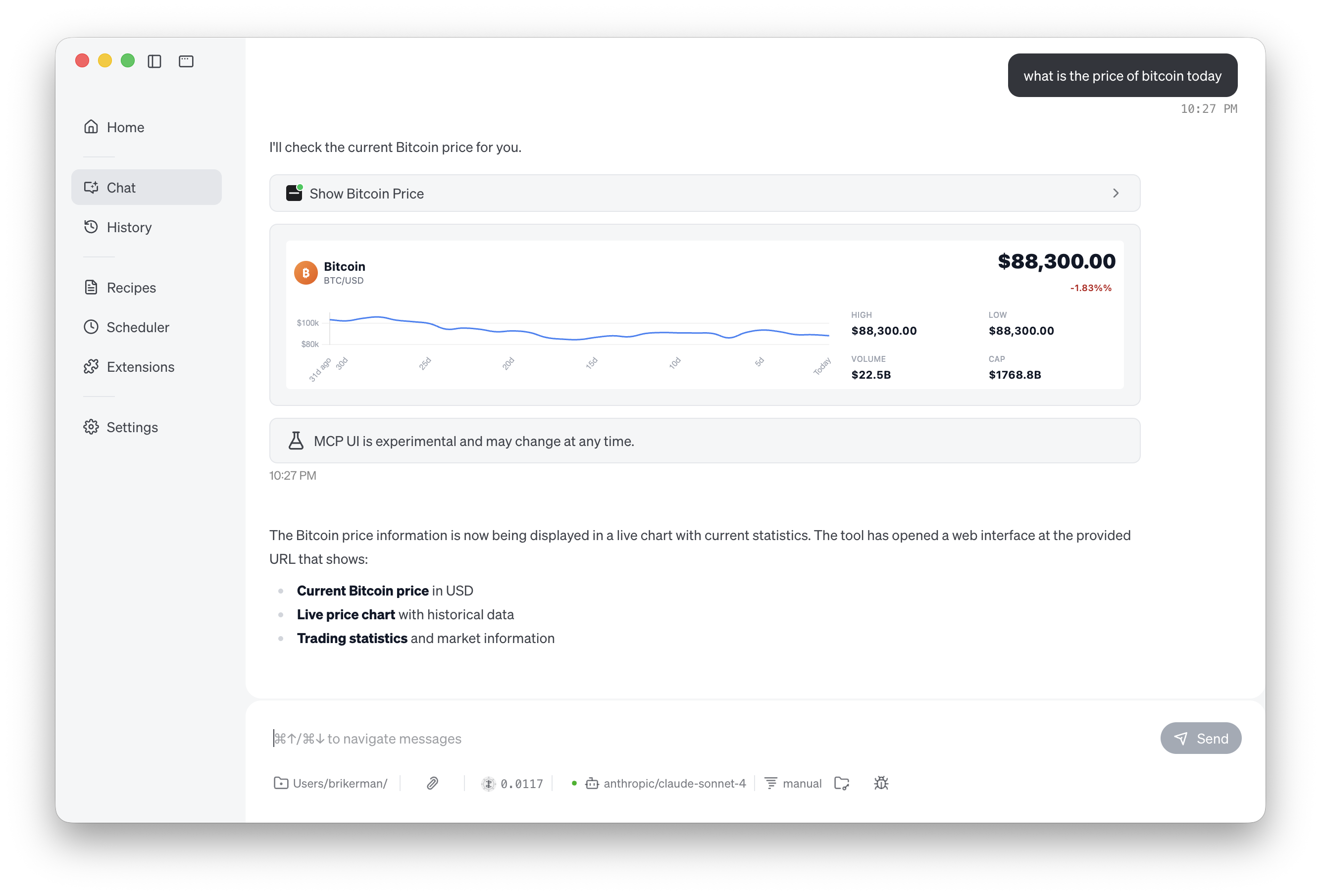
ダッシュボードはコンパクト(高さ約180px)ですが情報量が豊富です:
- 大きく読みやすい価格表示
- カラーコードされた変動インジケーター(上昇は緑、下落は赤)
- ホバーツールチップ付きのスムーズなチャート
- 一目でわかる4つの主要メトリクス
例2の実行
# mcp-app-demoディレクトリから
uv run demo-app-2.py

# 以下が表示されるはずです:
# 🚀 Starting Bitcoin Dashboard Server
# 📊 MCP Endpoint: http://localhost:8032/mcp
# 🌐 Web UI: http://localhost:8032/ui/bitcoin
# ブラウザで開く
open http://localhost:8032/ui/bitcoin

# 別の通貨で試す
open http://localhost:8032/ui/bitcoin?currency=EUR
open http://localhost:8032/ui/bitcoin?currency=GBP
open http://localhost:8032/ui/bitcoin?currency=JPY
Goose Desktopへの接続
例2をGoose Desktopに接続するには、例1と同じExtensionsセットアップを使用し、異なるエンドポイントを指定します:
- Type:HTTP
- Endpoint:
http://127.0.0.1:8032/mcp
これでGoose Desktopにshow_bitcoin_priceの呼び出しを依頼してダッシュボードを確認できます。
まとめと次のステップ
おめでとうございます!MCP Appsを使用してAIエージェント向けのインタラクティブUIの構築方法を学びました。カバーした内容を振り返りましょう:
学んだこと
1.MCP Appsの基礎
- 複数のAIクライアントで動作するサーバーサイドUI生成
- MCP AppsをAGUIと使い分けるタイミング
- uvを使ったプロジェクトのゼロからのセットアップ
2.2つの実装パターン
- rawHtmlモード(例1):シンプルなコンテンツ向けのクイックなインラインHTML
- iframeモード(例2):完全なJavaScriptサポート付きの独立したHTMLファイル
3.リアルワールド統合
- HTTPトランスポートでのGoose Desktopへの接続
- 外部APIからのライブデータ取得
- モダンウェブフレームワークの使用(Tailwind、Chart.js)
MCP Appsを使用する場面
以下の場合にMCP Appsを選択してください:
- ビジュアル出力(チャート、テーブル、ダッシュボード)で既存のツールを強化したい場合
- 任意のMCPクライアント(Goose Desktop、Claude Desktop、Nanobotなど)で動作させたい場合
- カスタムUIの構築よりもコンテンツに集中したい場合
- データ処理とフォーマットにサーバーサイドロジックを活用したい場合
以下の場合はAGUIやカスタムソリューションを選択してください:
- スタンドアロンのAIアプリケーションが必要な場合
- ユーザー体験全体を深く制御したい場合
- カスタムプロトコルや特殊なインタラクションが必要な場合
リソース
公式ドキュメント: ホストプラットフォーム:- Goose Desktop - AI開発者アシスタント
- Nanobot - 完全なMCP-UIサポート
- LibreChat - オープンソースAIチャットプラットフォーム
- Chart.js - JavaScriptチャートライブラリ
- Tailwind CSS - ユーティリティファーストCSSフレームワーク
- CoinGecko API - 無料の暗号通貨データ